On this page
Part of the tutorial: page 8 of 12
▶ Watch this page: part 8 of the tutorial video (about 2 min), with narration and subtitles.
Tutorial 8: Places and labels
Keep a generated place, add a place of your own, change a pin style, name the seas, mountains, forests and rivers, and place a name that had no room.
Start from: 07-roads-and-sea-lanes.json, the map as it is at the end of Tutorial 07 Roads and sea lanes. Download it, then open Maps on the rail and click Import JSON; the map is listed under its name, and Load opens it. Or carry on with your own map from Tutorial 07 Roads and sea lanes.
Places are pins: a point on the map with an icon, a name and a description. The run on page 5 placed nearly two thousand, from capitals to villages, each on a pin style (Capital, City, Town, Castle and so on) that sets its look and the detail levels at which it and its name are shown.
Every name on the map is a label: the labels of pins, routes and regions follow their owner's name, and standalone labels name anything else, such as a sea or a mountain range. Names are placed so they don't cover each other; a name with no room is left out until you place it yourself.
Steps
-
Click Routes and pins on the rail. Pin is chosen at the start of the bar. Type Kineley in the Pins list's search field, click the row that is left, and click its Focus view button: the map zooms to the city on the King's Road, and it opens in the inspector. Open the inspector's Generated section to read what the run recorded about it: its place in the world, its population, its people and its history.
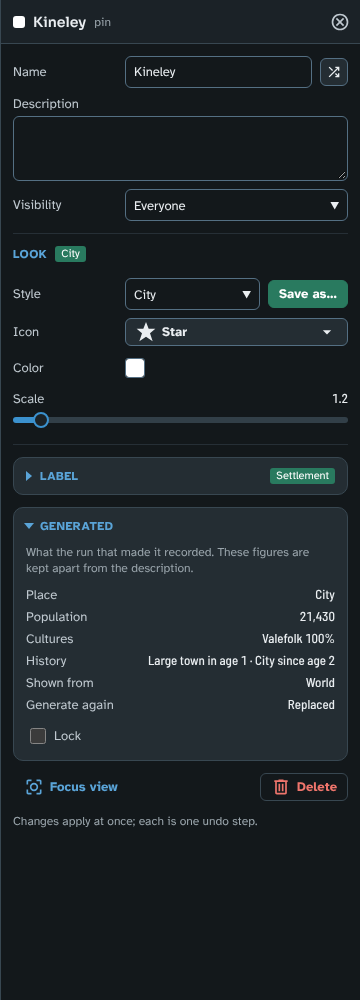
Kineley in the inspector, with what the run recorded about it.
-
Type a Description: A walled city where the hill roads meet the King's Road. Then tick Lock in the Generated section. Generating again replaces a generated place you have not changed; a place you have changed (as the description does) or locked is kept. The places you leave unlocked keep their names too, as long as a place still stands where they stand, since each is named from its own place on the map.
In Foundry, a pin's name and description become a page of the scene's journal when the map is exported to a scene (see Export).
-
Choose Place on the bar and set Pin style to Castle. Zoom in on the Red Hills and click the hills west of the King's Road, north-west of the words The Red Hills. The new pin is called Castle and opens in the inspector: change Name to Redwatch and press Enter. Its icon is on the map, but not its name: the Castle style shows castles' names only from the Regional detail level, and the map is at Province.
With No style, Select icon on the bar chooses the icon of a plain pin, whose name always shows. A pin's colour and size are set in its inspector; changing them by hand sets its Style to Custom.
-
Open Styles and icons (in More at the foot of the rail) and click Castle in the Pin styles list. In the inspector's Label group, set Name detail level to Province. Every pin on the Castle style follows the change at once: Redwatch's name shows, and so do the names of the run's castles.
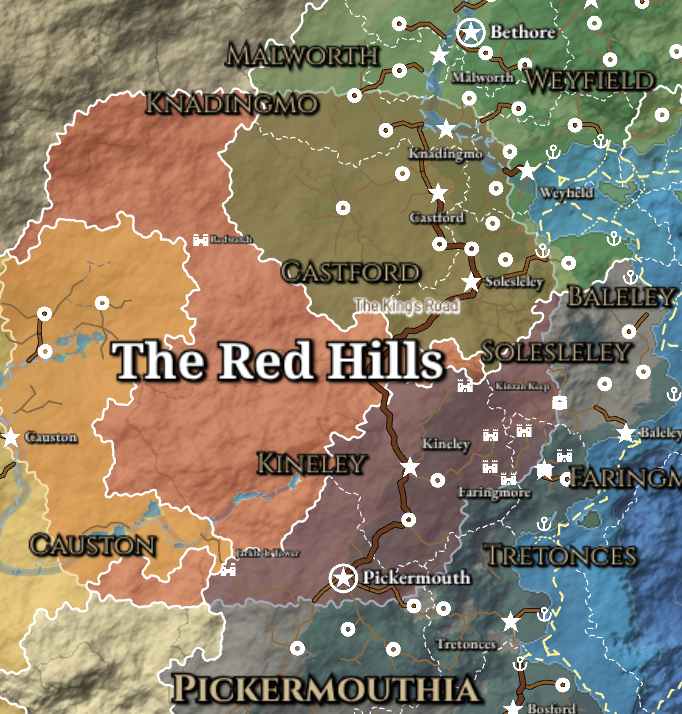
Redwatch, west of the King's Road, with the names of the run's castles now shown.
A style changes every pin that follows it, so making every town larger, or every ruin red, is one edit. Save as… in a pin's inspector makes a new style from a pin you have tuned.
-
Click Labels on the rail and click Name natural features in the Natural features section. It finds the map's oceans, seas, gulfs, bays and lakes, its mountain ranges and hills, its great forests, deserts and plains, and its largest rivers from the terrain, and names each in the language of the people living there, in the geographic label styles (Ocean and sea, River and so on). The section counts what it named. Zoom in on the east of the continent to see some of them.
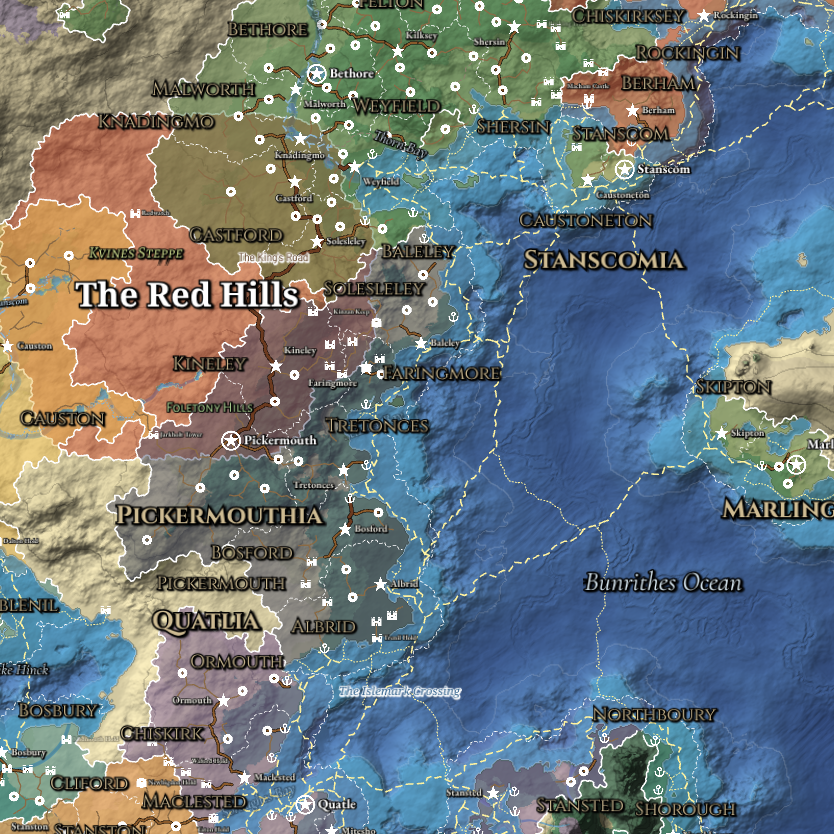
Natural features named in the east of the continent and the ocean beyond.
Running it again after you change the terrain places its names again, and keeps any you have moved, renamed or restyled. To name a feature yourself, choose Place on the bar and click the map for a label of your own; give it its group's geographic style and the action leaves that feature to you. While you hold a label in Place mode, scroll to turn it and Shift+Scroll to resize it.
-
Choose Place on the bar, and set the Labels list's Kind of label filter to With no room: it lists the names the map has no room for, here some of the natural features, a few duchies and castles, and the names of your two routes (route names are placed last). While you are placing labels, each shows faintly where it would go. Zoom in on the Red Hills: the steppe's name, Kvines Steppe, lies faintly under your region's own name, The Red Hills.
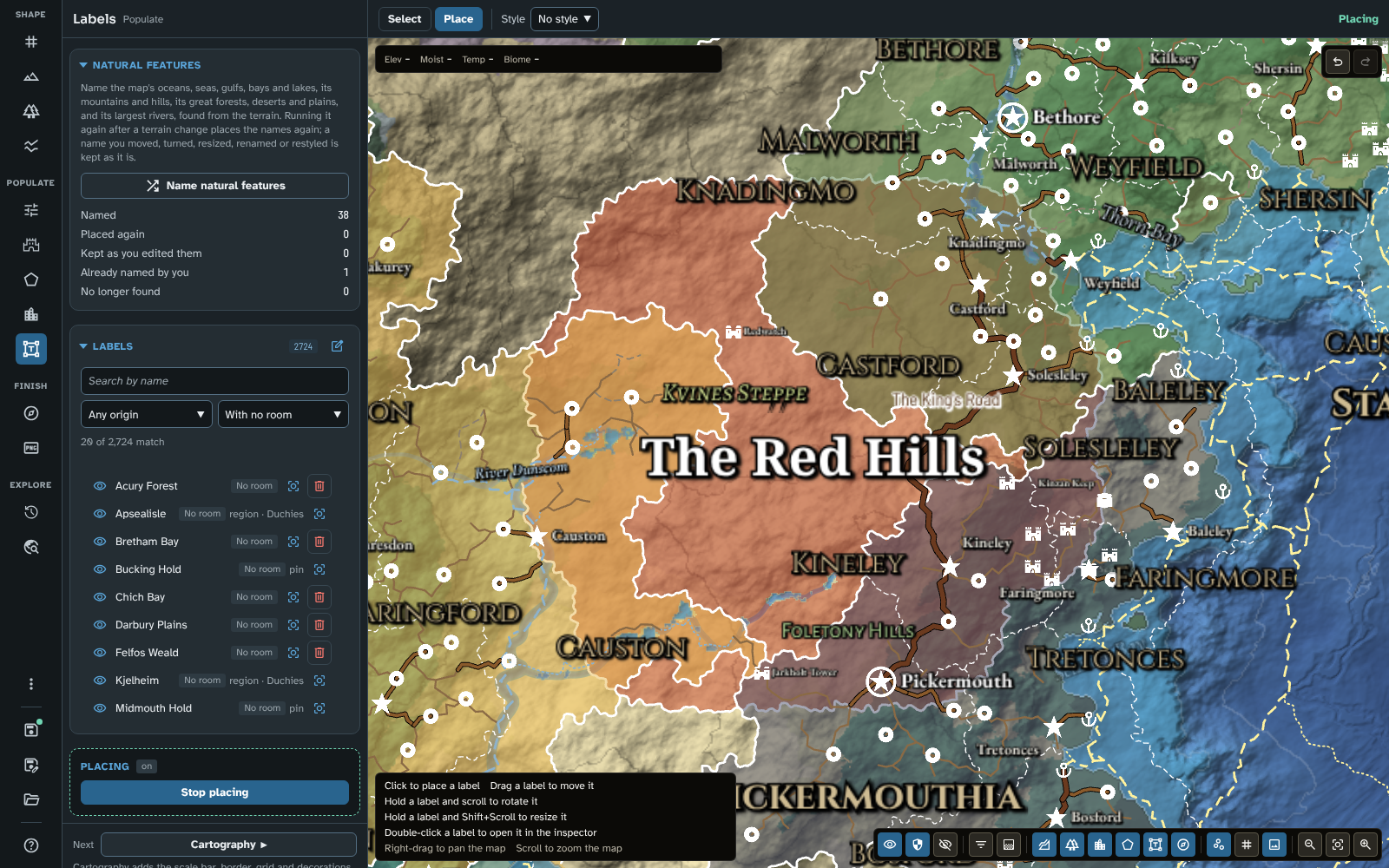
The names with no room, listed, and shown faintly on the map while you place labels.
-
Drag the faint Kvines Steppe up and to the left, into the open hills north-west of Redwatch, and let go. A name you have dragged keeps its place, and is always drawn; the smaller names around it make room.
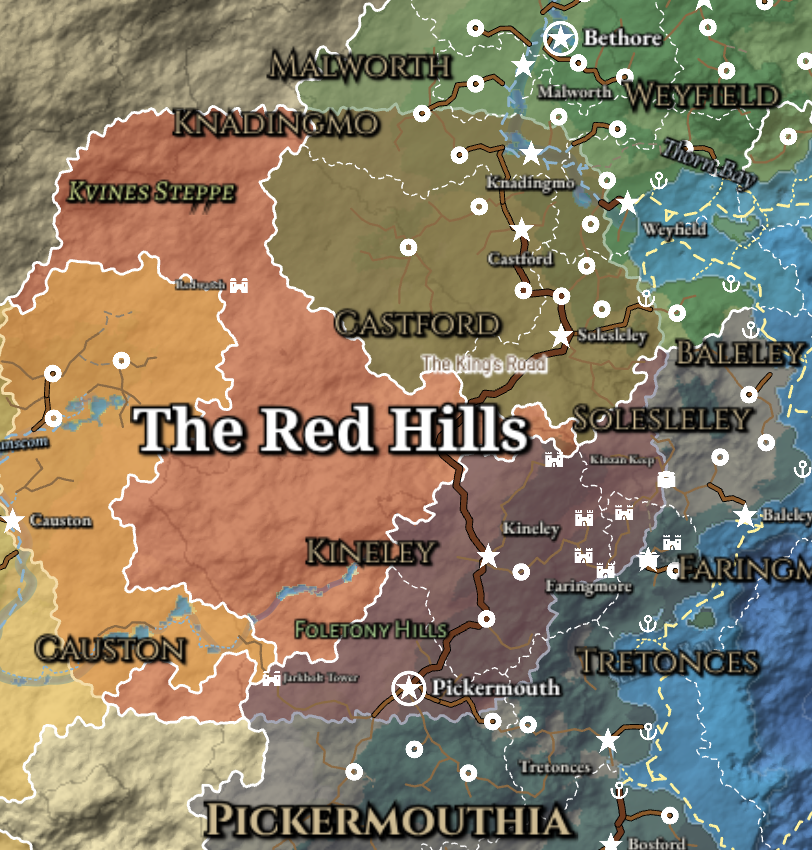
Kvines Steppe, dragged into a place of its own.
-
Your sea lane's name had no room either. Zoom in on the sea again: The Islemark Crossing shows faintly above the middle of its line, near the coast. Drag it out into the open water.
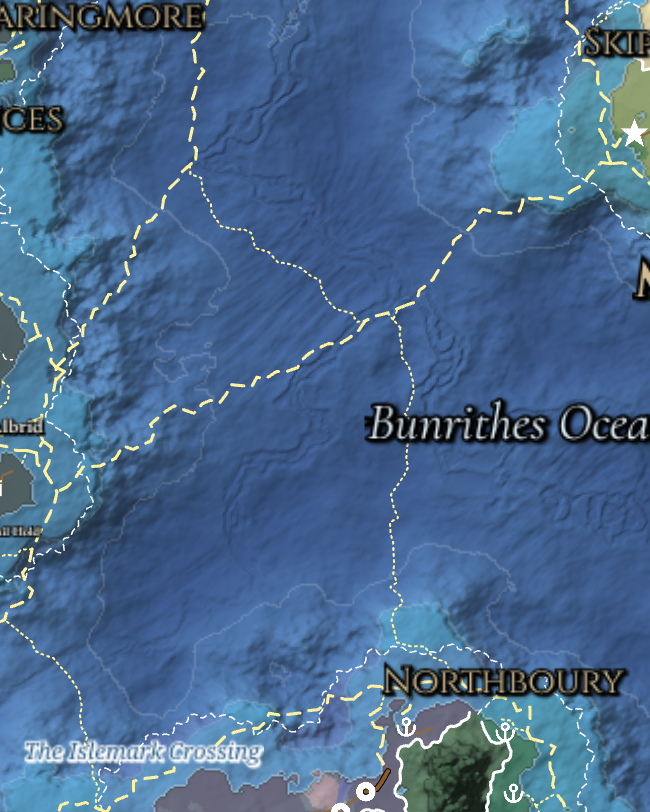
The Islemark Crossing, placed in the open sea.
-
Choose Select on the bar to stop placing, and save the map.
What you should see
Kineley, locked, with its description. A castle of your own, Redwatch, in the Red Hills, its name shown with every castle's. The map's seas, mountains, forests and largest rivers named, among them the Bunrithes Ocean east of the continent, and the names of Kvines Steppe and The Islemark Crossing placed by hand.
To compare your map with the tutorial's, or to start the next page from exactly this map, download 08-places-and-labels.json and import it in Maps with Import JSON.
In Foundry
Everything on this page is the same in Foundry. When the map is exported to a scene, Kineley's name and description become a page of the scene's journal; give Redwatch a description and it gets one too.
On your own map
Lock the generated places your story needs before you generate again, and describe them as you go: the description travels with the pin to Foundry's journal. Mark places the run doesn't make (a ruin, a shrine, a lair) with a style of your own, made with Save as… or in Styles and icons, so you can change them all at once. Run Name natural features again once the terrain is settled, and name anything it misses with a standalone label in its group's geographic style. If the map is crowded, check the With no room filter before you export, and place the names that matter. See Routes and pins, Labels and Styles and icons.
Next: Tutorial 09 Exploring the world
Related: Routes and pins, Labels, Styles and icons, Map Canvas