On this page
Part of Map Making Tools
Regions
The Regions tool shows political, economic or any other areas on your map: kingdoms and their duchies, trade zones, climate bands, a campaign's explored territory. A region is painted onto the map's cells rather than drawn as a shape, so neighbouring regions always share their border exactly, with no gaps or overlaps, and its waters follow its coast.
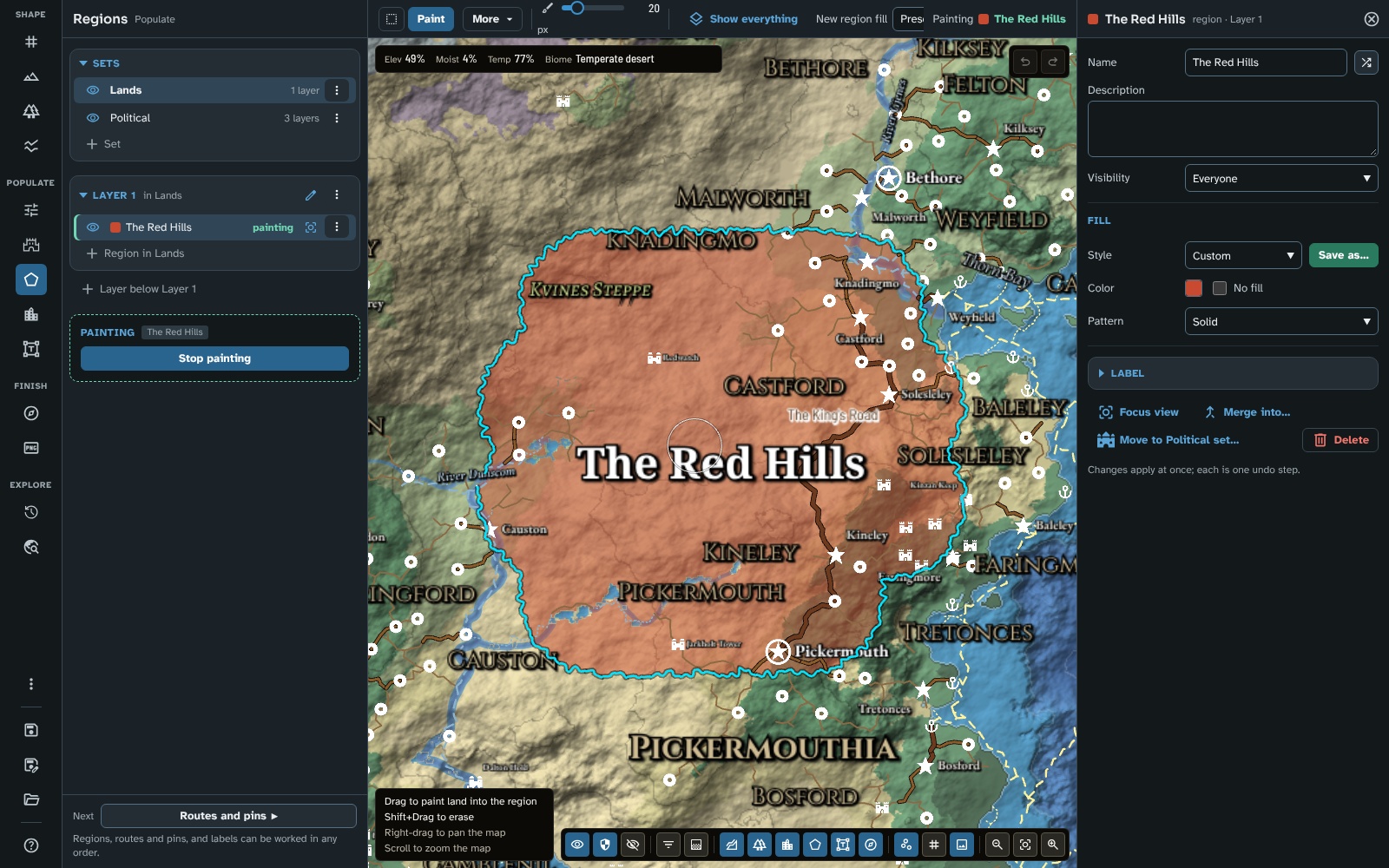
Regions with the Lands set chosen, the Red Hills being painted and open in the inspector.
Layer sets, layers and regions
Regions are organised in three tiers:
- A layer set is one way of dividing the map (for example "Political" or "Climate"). A map can have several sets, each shown over the map independently.
- A set holds layers, and a layer can sit below another layer (for example Kingdoms, then Duchies below Kingdoms, then Counties below Duchies). Each layer divides the map on its own: a cell belongs to at most one region of a layer.
- A layer holds its regions (for example the individual kingdoms). A region of a layer below sits inside a region of the layer above it, its parent region.
A new map starts with one layer set, Regions, holding one layer, Layer 1, so you can add regions straight away. A map you open keeps its own sets.
Generate makes a layer set of its own, Political, with Realms, Duchies and Counties layers. Its regions are ordinary regions: repaint, rename or restyle them here as you like. A region you change (or lock) is kept, with its whole realm, when you generate again, and the run builds its own realms, duchies and counties round the regions it keeps, which hold exactly their painted land (see Regions and Generate).
Layers were called levels before v4.0.0, and a map's regions used to be drawn as shapes. A map saved by an earlier version is converted when you open it: its region layers become layers of a layer set, and its regions become cells.
The panel
The panel is a stack of lists, one under the other, each a section you can fold:
- Sets: every layer set of the map.
- The chosen set's top layer: all its regions.
- Each layer below it, showing only the regions inside the region chosen in the list above.
…and so on, as deep as the set goes. Choosing a kingdom in the top layer shows its duchies in the next list; choosing a duchy shows its counties in the one after. A set with several top layers, or a layer with several layers below it, shows one list for each.
Every list ends with a row that adds to it, and the last list is followed by + Layer below, so you can lay out a set's layers before you paint anything.
Below the lists, the state block starts and stops editing (Start painting, Stop painting), and Next goes to Routes and pins.
Every change made in the panel is one step of undo, including deleting a layer or a whole set: undo brings back its regions and their painted cells.
Sets
Each row has the set's eye, its name (bold when it is the chosen set) and how many layers it holds. Click a row to choose the set and open it in the inspector.
The eye cycles the set between visible to everyone, visible to the GM only and hidden. The row's ⋮ menu (More options) has:
- Rename: type the new name in the row; Enter keeps it and Escape leaves it as it was.
- Move up and Move down: sets are drawn in list order, the first lowest.
- Delete: after asking (it tells you how many layers and regions go with it), the set and all its layers go.
+ Set at the end of the list adds a layer set. It opens a row in the list with a name ready to type over; Enter (or clicking elsewhere) makes the set, and Escape or an empty name makes nothing. The new set comes with its first layer, Layer 1, and opens in the inspector.
Layer lists
Each layer has its own list. Its heading shows:
- the layer's name, then in the set's name (for a top layer) or in the region chosen in the list above;
- free when the layer's nesting is free (see the layer inspector below);
- a warning badge with a count when some of its cells lie outside their parent region (Fix nesting in the layer's menu repairs them);
- the Edit layer button, which opens the layer in the inspector;
- the ⋮ menu (Layer options):
- Rename: type the new name in the heading.
- Edit several regions…: mass edit for the layer's regions (see Mass edit).
- Auto-assign cells and Fix nesting (on layers below another layer only; see Nesting tools).
- Move to Political set… (on a layer with regions, in a set other than Political): moves every region of the layer into the Political set (see Regions and Generate).
- Delete: after asking, the layer goes with its regions and their painted cells, and the layers below it move up to its parent.
Pressing the heading's own controls never folds the list.
Each region row has:
- the eye (everyone, GM only, hidden);
- a swatch of the region's fill;
- its name;
- a count of the regions inside it in the layer or layers below (shown only when there is a layer below; its tooltip reads Regions inside);
- painting while it is the region being painted, or GM or hidden for its visibility;
- Focus view, which zooms the map to the region;
- for a region made by Generate, a lock button: a locked region is kept, with its whole realm, when you generate again;
- the ⋮ menu: Rename, Merge into (see Merging and deleting regions), Change rank… (in the Political set) or Move to Political set… (in any other set; see Regions and Generate), and Delete.
In a studio less than 1,400 pixels wide, a row's actions show only on the row you point at, the row with focus and the chosen row, over the end of its name, so the names keep their room.
Click a region's row to choose it: it opens in the inspector, becomes the region being painted, and sets what the list below shows. The lists above follow too: choosing a region on the map chooses its parent regions in the lists above.
A layer's list ends with + Region in its parent (the set's name for a top layer, the chosen region's name below). It opens a naming row with a swatch of the fill the new region will get; Enter makes the region inside that parent, chooses it, makes it the region being painted and opens it in the inspector. Escape or an empty name makes nothing.
A list below a layer with no region chosen says Choose a region in that layer to see its regions. and offers no add row until you choose one. An empty list says No regions in its parent yet.
Unassigned at the end of a lower layer's list gathers the regions that have no single parent region (because the layer's nesting is free, because they were painted before parent regions were kept, or, in the Political set, because they are a duchy or county standing alone). Click it to open or close it; its count says how many it holds.
+ Layer below
+ Layer below the last layer of each chain makes the next layer at once, named Layer and its tier (Layer 2, Layer 3…) until you rename it from its heading, and opens it in the inspector. A set with no layer offers + Layer in the set instead. A new layer below another starts with no fill of its own and a thinner, dashed border, so it reads as a subdivision of its parent rather than a second tint over it.
Keys in the lists
Each list is one stop for the Tab key. Up and Down move through its rows and its add row, Home and End jump to the first and last, and Enter opens a row in the inspector (or opens and closes Unassigned, as Right and Left do). The inspector follows as you step through a list, and focus stays in the list.
The bar
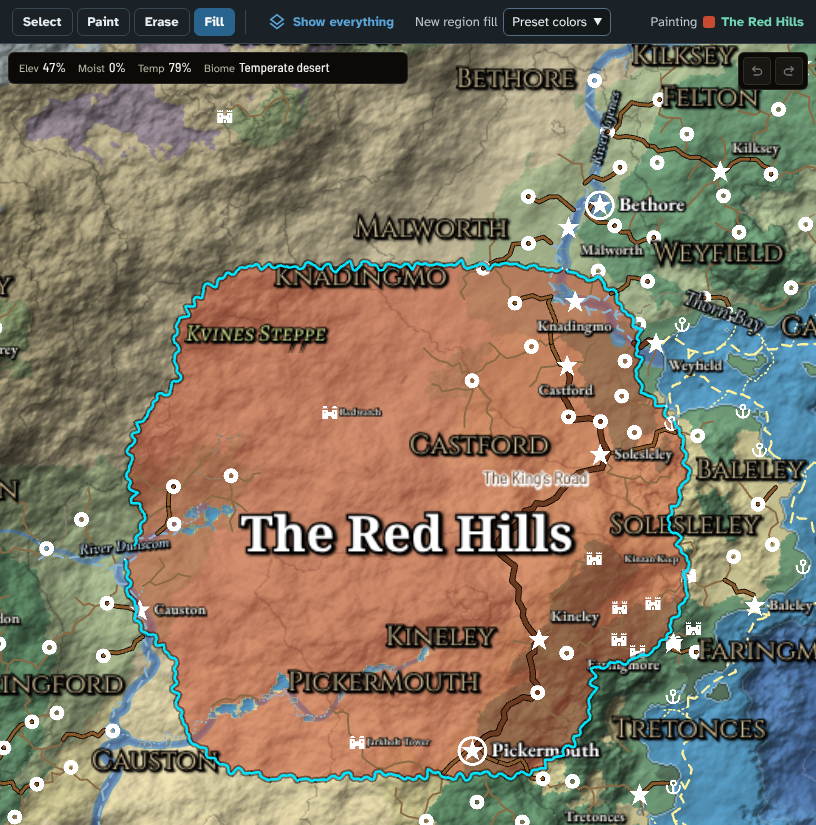
Fill mode: the bar without a brush size, and the area a click would fill outlined on the map.
The bar holds the Regions modes, then their settings. Choosing Paint, Erase or Fill starts editing; choosing Select stops it. On a narrow bar, Fill and then Erase fold into More.
| Mode |
Click or drag |
With Shift |
| Select |
Click a region to choose it and open it in the inspector. Click unclaimed ground, or press Escape, to let go of it. Nothing is painted. |
|
| Paint |
Drag to paint land into the region being painted. Water is left alone, so coasts stay clean. |
Shift+Drag erases instead. |
| Erase |
Drag to take cells away from any region of the layer, on land and water alike. |
Shift+Drag paints land into the region instead. |
| Fill |
Rest the pointer over land and the area a click would take is outlined: the connected land with the same owner as the cell under the pointer (unclaimed land, or another region's). Click to give it to the region. |
Shift+Click a region to empty the connected land of it under the pointer. |
In Select mode the map picks from the layer being painted, or from the topmost visible layer when none is. The map's hint lists what the mouse does in the current mode.
The settings:
- Size (Paint and Erase only): the brush radius, from 2 to 100 pixels. A brush smaller than a cell still paints the cell under it.
- Show everything: while painting, only the layer being painted and the layers above it are drawn. Turn this on to draw every layer and set as the map shows them.
- New region fill: the fill a new region gets. Preset colours gives each new region the next of its layer's preset colours; a region fill gives it that style's colour and pattern. Region fills are managed in Styles and icons.
The bar's readout names the region being painted, with its swatch.
Painting regions
Choose a region (click its row, or add one with + Region in), then choose Paint or Fill on the bar, or press Start painting in the panel. Each stroke or fill is one step of undo, together with the waters it changes. Escape ends a stroke whose release went astray, or lets go of the region being painted.
If no region is chosen, painting is refused with a message asking you to choose or add one. Erase needs no region: it clears any region of the layer.
Fill is the quick way to take an island or a continent, to fill the inside of a border you have brushed, or (on a lower layer) to give the rest of a parent region to the county being painted. On a fresh layer one click can take a whole landmass, which the outline shows before you click.
What the map shows while you paint
While you are painting, the map is drawn for the task: the layer being painted at a working fill (at least half opaque, even for a layer drawn as borders only), the layers above it as borders only, so the parent region's outline is there to paint inside, and nothing else. The region being painted is outlined. Stopping shows the map as its visibility and opacity settings have it. Show everything on the bar draws every layer and set while painting instead.
Waters
Regions are painted on land. What a region owns at sea follows from its coast: each layer has a Territorial waters distance in map pixels (the scale bar in Cartography can show what a pixel is in your map's own units), and after every stroke the layer's water goes to the nearest region by sea distance from its coast, up to that distance. So a strait or bay between two realms splits along the halfway line, open sea beyond the limit stays unclaimed, and a lake whose every shore belongs to one region is wholly that region's. The waters join the stroke's undo step. Set the distance to 0 for a layer whose regions should own land only (climate bands, say). Whether claimed water is tinted is the layer set's Fill over water setting.
Painting nested layers
On a constrained layer below another (see the layer inspector below), a region paints only inside its parent region. A region made with + Region in has its parent region from the start. A region with no parent yet takes the parent region it is first painted in; a stroke started outside every parent region is refused with a message.
Painting a parent layer over ground that belonged to another parent region unassigns the cells of the constrained layers below it, since their regions now lie outside their parent. A notice says how many cells were unassigned. Auto-assign cells in the lower layer's menu fills them again.
On a free layer, regions may cross their parent's borders, and painting the parent leaves them alone.
In the Political set, a duchy or county may also stand alone, outside every parent region: it can be painted on land no region of the layer above holds, and its cells there are no nesting problem. It is listed under Unassigned, and its Independent choice says what Generate makes of it (see Regions and Generate).
Both are in the ⋮ menu of a layer below another layer, and each is one step of undo.
- Auto-assign cells gives the unassigned land inside each parent region to the nearest of this layer's regions in that same parent. It runs with a progress overlay; press Cancel to stop it, which leaves the layer as it was. A notice says how many cells were assigned. It is greyed out when the layer has no unassigned cells.
- Fix nesting gives each region the parent region holding most of its cells, and unassigns its cells outside that parent. Use it after making a layer free and then constrained again, or after repainting a parent. It is greyed out when nothing is out of place.
Merging and deleting regions
- Merge into (in the region's menu, or Merge into… in its inspector) opens a dialogue (Merge and the region's name) where you choose another region of the same layer. The region's cells go to it and the region is removed. Regions below that belonged to it now belong to the region it merged into, and keep their cells. A layer with only one region has nothing to merge into, and a message says so.
- Delete (after asking) leaves the region's cells unassigned at its layer; layers below it keep their cells.
The inspector
Choosing a set, a layer or a region opens it in the inspector beside the map. Each change applies at once and is one step of undo (a text field applies on Enter or when you leave it, a slider when you let go). Double-clicking a slider puts back the value it had when the inspector opened. Escape closes the inspector.
Region
The header shows the region's name, its swatch and region · its layer. Opening a region makes it the region being painted, so you can keep painting with its details showing.
- Name, Description and Visibility (Everyone, GM only or Hidden). In Foundry, a region's name and description become a page of the scene's journal when the map is exported to a scene (see Export). The shuffle button beside Name (Random name) gives the region a new random name in the language of the people living there (or the map's Default name style); about one in three adds a word that fits, such as Hills, Coast or Forest (or, in a top layer, a realm's form of the name, such as Ashfordia). Each press gives another, and each is one step of undo. A random name doesn't count as an edit of a generated region (see Generate).
- Fill:
- Style: the region fill the region follows, or Custom. Save as… makes a region fill from the region's colour and pattern and gives the region that style. Changing the colour or pattern by hand sets the style back to Custom.
- Colour, with No fill to leave the region unfilled (its borders still show).
- Pattern: Solid, Diagonal hatch or Cross hatch.
- Label (folded at first): the region's label, with its own visibility. See Labels for the label fields.
- Independent (for a duchy in no realm of yours, or a county in no duchy or realm of yours, in the Political set): ticked, Generate makes it a state of its own; unticked (the default), Generate treats it as one of its own, so a realm (or a duchy, for a county) may take it whole, but never cut through it.
- Generated (folded at first): for a region made by Generate, its title, rank, population, cultures and ruling culture, the duchies and counties it holds, the detail level it is shown from, what generating again will do with it, and Lock. For a region of your own in the Political set, what the last run made of it, read only, with Built round (your region). See Generate.
- Focus view, Merge into…, Change rank… (in the Political set) or Move to Political set… (in any other set), and Delete.
A region's borders come from its layer, not from the region.
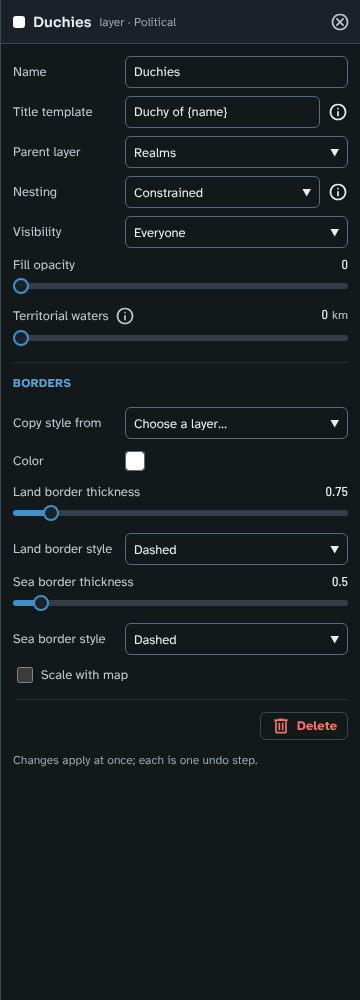
The inspector for the Political set's Duchies layer, a layer below Realms: its parent, nesting, territorial waters and borders.
Layer
The header shows the layer's name and layer · its set. Opening a layer makes it the active layer.
- Name.
- Title template: how a region's title reads at this layer, with
{name} standing for the region's name (for example Kingdom of {name}). A generated region shows its title in its Generated details and its journal page, and other modules can read it; labels show the region's name alone.
- Parent layer, or None (top layer). Giving a layer a new parent moves it (and the layers below it) under that parent, and each of its regions is given the parent region holding most of its cells. This is how you move a layer: layers are not moved from the panel.
- Nesting:
- Constrained (the default): a region is painted only inside its parent region, and painting a parent region over a child's cells clears those child cells.
- Free: regions may cross their parent's borders, and painting the parent leaves them alone. The layer's heading shows free.
- Visibility (Everyone, GM only or Hidden).
- Fill opacity, from 0 to 1, multiplied by the set's Opacity. It fades the fill only: a layer at 0 is drawn as borders alone. A new top layer starts at 0.5; a new layer below another starts at 0.
- Territorial waters (pixels, up to 400): how far the layer's regions claim the sea from their coasts (see Waters). A new top layer starts at 40 pixels; a layer below another at 0, since its parent's waters already cover it.
- Borders:
- Copy style from fills the border fields from another layer of the map (a layer of another set is named with its set). It is one step of undo.
- Colour.
- Land border thickness and Land border style (Solid, Dashed, Dotted or Dash dot).
- Sea border thickness and Sea border style, for the borders over water.
- Scale with map: off, the thicknesses are map pixels; on, they grow and shrink with the map's resolution, as pins and labels do.
- Move to Political set… (on a layer with regions, in a set other than Political).
- Delete.
Layer set
The header shows the set's name and layer set. Opening a set makes it the active set.
- Name and Visibility (Everyone, GM only or Hidden).
- Opacity multiplies the fill opacity of every layer in the set and sets how strongly their borders are drawn, so you can fade a whole set without changing the balance between its layers. A new set starts at 1 (no fading).
- Fill over water shows a faint fill where the set's regions claim water. Turn it off to fill regions over land only.
- Delete.
Regions and Generate
Generate reads the regions of the Political set only. The realms, duchies and counties there that a run keeps (those you painted, and generated ones you edited or locked, with the rest of their realm) are built round in the present age: each keeps exactly its painted land, and the run fills the land round and inside them with its own. A realm you drew is crowned at a capital pin inside it, or else its richest duchy's seat, and filled with generated duchies and counties where you drew none. See Your own pins, regions and routes.
Move to Political set
Regions painted before the map had a run, or in a set of your own, are not read by Generate. Move to Political set… (in a region's ⋮ menu or inspector, or for a whole layer in its heading's ⋮ menu or inspector) moves them in. A dialogue asks which layer they join, under Move as: Realm, Duchy or County (one the Political set has no layer for is greyed out).
- With no Political set on the map, one is made first, with the three layers Generate uses and their looks, so a later run writes into it and keeps your regions.
- The region moves: it leaves its own set (which stays, even if left empty, for you to delete) and keeps its name, look and label.
- It takes its land: where it overlaps a region of the chosen layer, it takes that land, as painting does, and under it the layers below are cleared, so Generate can fill them again. Generated regions it cuts into are not marked as edited, so a run still replaces them.
- Its parent is the region of the layer above holding most of its land, or none, making it a duchy or county standing alone, with its Independent choice.
The whole move is one step of undo.
Change rank
Change rank… (in a Political region's ⋮ menu or inspector) makes a realm, duchy or county one of the other two in the same set (its rank now is shown but not offered). It moves as Move to Political set moves a region, taking its land on its new layer and clearing the layers below it there (a duchy made a realm loses its counties until Generate fills it). One step of undo.
Independent
A duchy in no realm of yours, or a county in no duchy or realm of yours, has an Independent choice in its inspector. Ticked, Generate makes it a state of its own. Unticked (the default, and how a region saved before version 4.3.0 reads), Generate treats it as one of its own: a duchy joins the realm that reaches it first, or stands alone, and a county joins a duchy, keeping exactly its land either way. A run that puts such a region in a realm or duchy records that parent for itself only, and places it afresh the next time.
Mass edit
To restyle several regions of one layer at once, choose Edit several regions… in the layer's ⋮ menu. A bar (Regions of the layer) appears in that list, with a tick on each region the list shows (and those under Unassigned). Tick the regions you want, or use Select all (everything the list shows) and Select none, then press Mass edit (its count shows how many are ticked). Done ends the choosing without changing anything; so does changing tool.
A region's fill (its region fill, colour and pattern), its visibility and its label's fields can be changed together; borders belong to the layer. When any chosen region's label has been moved by hand, Position can put them all back to Place automatically (see Labels). See Mass edit for how the dialogue works.
Tips
- Lay out a set's layers before painting: + Layer below works whether or not any region exists yet.
- To make Generate keep a kingdom you have in mind, paint it in the Political set (or paint it anywhere and use Move to Political set…) and generate: the run fills it with duchies and counties and builds the rest of the map round it.
- To name every region at once, use Name all in Generate's Names section. It never replaces a name you typed.
- Paint a region's outline with Paint and then click inside it with Fill to fill the rest.
- For a layer that should own land only (climate bands, say), set Territorial waters to 0.
- If a lower layer's heading shows a warning count, Fix nesting in its menu repairs it; if its regions have gaps after the layer above was repainted, use Auto-assign cells.
- Region fills (the styles) are managed in Styles and icons, and Save as… in a region's inspector makes one from that region.
- To see borders without fills, turn off Fills in the map controls' Regions menu; to hide a layer, untick it there (see Map Canvas).
- On a generated world map, the Detail level in the map controls decides which political layers show, with their names: realms at World, duchies from Province, counties from Regional.
Next: Routes and pins
Related: Labels, Styles and icons, Map Making Tools, Grid Cell Data