On this page
Part of Map Making Tools
Cartography
Cartography is the first tool of the Finish stage. Use it to add the finishing touches drawn over the map: a scale bar, a border, the grid, and decorations: a compass rose or a cartouche drawn by the module, or images of your own, such as a wind rose or a sea monster.
The panel's header shows the tool's place in the order of work ("Finish · 1 of 2"). Cartography has no Start or Stop button: while the tool is open, its decorations and the scale bar can be picked and moved at any time, using the modes on the bar.
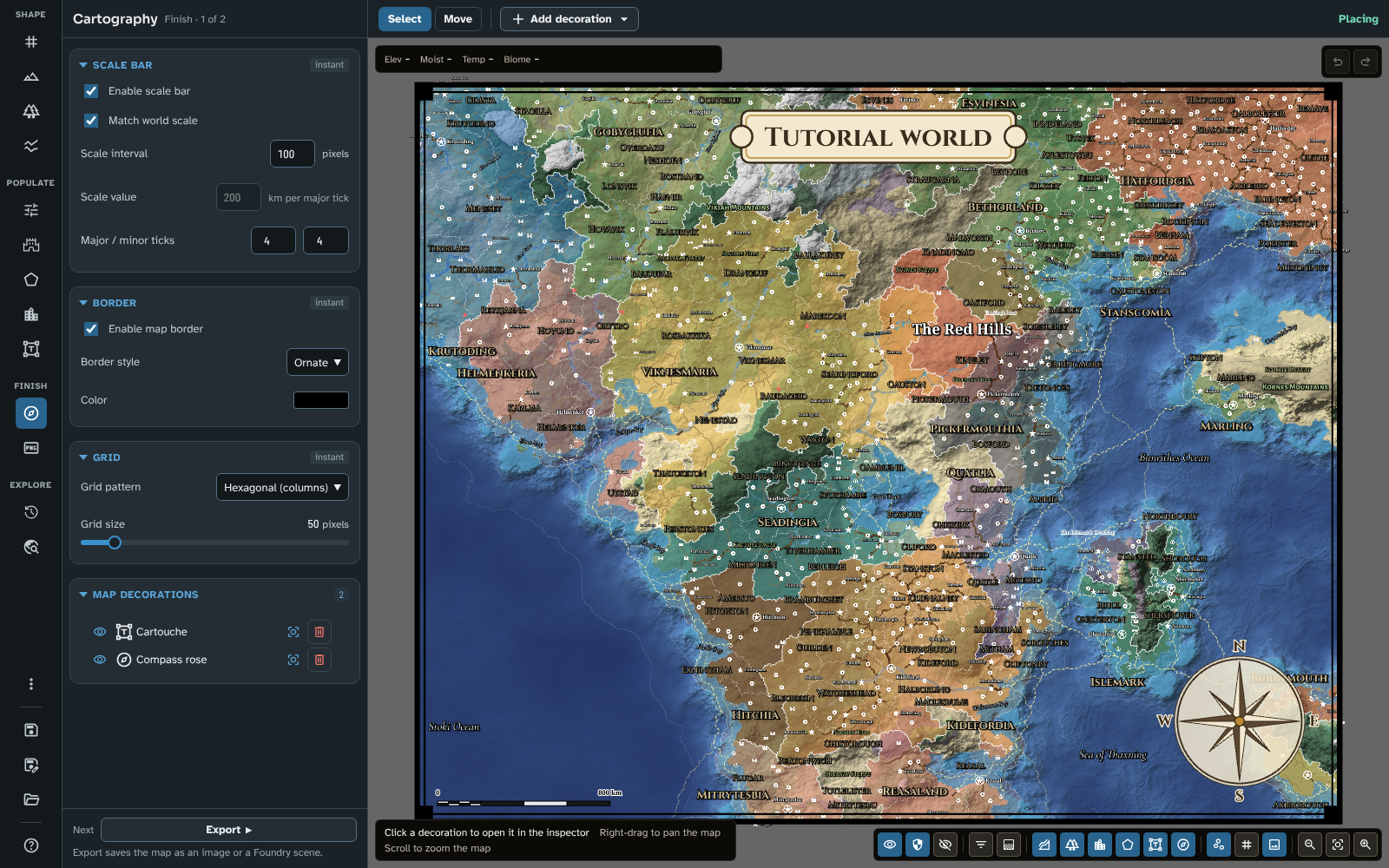
Cartography, with the scale bar, border and grid, a compass rose and a cartouche.
The panel
Scale bar
The badge says instant: changes show on the map straight away.
- Enable scale bar: draws the scale bar on the map. It starts near the bottom left corner; drag it where you want it (see The bar). The whole bar stays on the map: turned on or made longer near an edge, it moves in just far enough to fit.
- Match world scale: works out the bar from the world's own scale (the map's latitudes and Area factor in New map). Scale value is then rounded to 1, 2 or 5 of the map unit times a power of ten (5, 20, 500 and so on), each major interval is drawn exactly as long as that distance, and Scale value cannot be typed in. A new map starts with it on; a map made before it existed keeps its own bar, with it off.
- Scale interval: the length of one major interval of the bar, in pixels. With Match world scale on, it is the length you would like an interval to be, and the bar is drawn at the nearest length that gives a round value.
- Scale value: how many of the map unit one major interval stands for (per major tick).
- Major / minor ticks: two numbers. The first (Major ticks) is how many major intervals the bar has, from 1 to 10. The second (Minor subdivisions) is how many smaller divisions each major interval is split into, from 0 to 10.
The bar is as long as Scale interval times the number of major ticks, and its end is labelled with the number of major ticks times Scale value, followed by the map unit.
The bar's unit is the map's own Map unit, set in New map (km unless you name it something else). The same name is used wherever the module shows a distance.
A map made before the map unit existed takes its unit from the bar's old Scale units text, whatever it said (Miles, the old default, included), and keeps its own bar with Match world scale off, so the bar reads as you made it. The module's figures are kilometres shown under the unit's name, so if you want the name to say so, rename the unit in New map (to km, say).
Tip: with Match world scale off, the bar shows whatever scale you give it here, which need not match the distances the module works out. Turn it on to make the bar true to the world.
Border
The badge says instant.
- Enable map border: draws a border round the edge of the map.
- Border style: Solid, Double or Ornate.
- Colour: the border's colour.
The border is drawn just inside the map's edge, so the map, its exports and its grid keep their size. It is drawn over everything else, and names keep clear of it: while a border is on, the names of pins, routes and regions are placed inside it (see Where names go). A pin standing at the very edge of the map goes under the border.
Grid
The badge says instant. The grid moved here from the New map tool in version 4.0.0.
- Grid pattern: Gridless, Square, Hexagonal (rows) or Hexagonal (columns). Choosing a pattern other than Gridless switches the grid on in the map controls so that you can see it.
- Grid size: the size of a grid cell in pixels, from 20 to 300. 20 pixels is the smallest grid Foundry allows; a map saved with a smaller grid opens with a 20 pixel grid. Double-click the slider to put back the default of 50.
The grid is a setting of the map, saved with it, and shown or hidden with the Grid toggle in the map controls (see Map Canvas). The grid matters beyond what you see:
- Export to scene (Foundry only) gives the new scene the same grid pattern and size, so the scene's grid lines up with the map. The grid is not drawn into the scene's background image, because Foundry draws its own grid (see Export).
- Grid cell data: when the map has a grid, Export to scene also writes a summary of every grid cell (its biome, terrain and other properties) onto the scene for other modules and game systems to read. A gridless map has none. See Grid Cell Data.
- Export image includes the grid only if the Grid toggle is on.
- Regional maps: a regional map keeps its parent's grid size, and its crop is fitted to the grid (unless the map is gridless) at a whole-number zoom, so every grid line of the parent is one of the regional map's. See New map.
Map decorations
The section's title shows how many decorations the map has. Each row has:
- a visibility button that cycles the decoration between Everyone, GM only and Hidden;
- an icon for its kind (an image, a compass rose or a cartouche), with the kind as its tooltip;
- the decoration's name (click the row to open it in the inspector);
- Focus view, which zooms the map to the decoration;
- Delete.
The list is empty until you add a decoration with Add decoration on the bar.
Names and decorations
Names keep clear of the scale bar and of every decoration, as they keep clear of the pins: a place's name moves round its pin, a region's or route's name finds another place, and a name with no room is not drawn (see Where names go). Names find their places again when you let go of a decoration you have moved, turned or resized; while you drag it, they stay where they were.
A realm's name always shows, so where its region lies mostly under a decoration it may still be drawn there, and a pin under a decoration keeps its name beside it. Lower the decoration's Opacity to let them show through, or move it somewhere quieter. With the Decorations toggle off in the map controls, names no longer keep clear of decorations.
The bar
The bar's Decoration mode group has two modes, then Add decoration:
-
Select (the default): click a decoration on the map to open it in the inspector. Nothing on the map moves, so you can pick a decoration without nudging it by accident. Press Escape to close the inspector.
-
Move: drag a decoration or the scale bar to move it. While you hold a decoration, scroll to rotate it, or hold Shift and scroll to resize it. Double-click a decoration to open it in the inspector. The scale bar can only be moved; set its size in the panel. A chosen decoration shows the handle it is held by (its centre) only in Move, so in Select nothing covers a compass rose's hub or a cartouche's title.
-
Add decoration: a menu of the decorations you can add:
- Image: opens the Add new decoration dialogue (see Dialogues).
- Compass rose: adds a compass rose near the bottom right corner (inside the border, if there is one), in the Classic design and the Parchment colours, and opens it in the inspector.
- Cartouche: adds a cartouche at the top of the map, in the middle, showing the map's name on a Plaque, and opens it in the inspector.
Each is one step of undo.
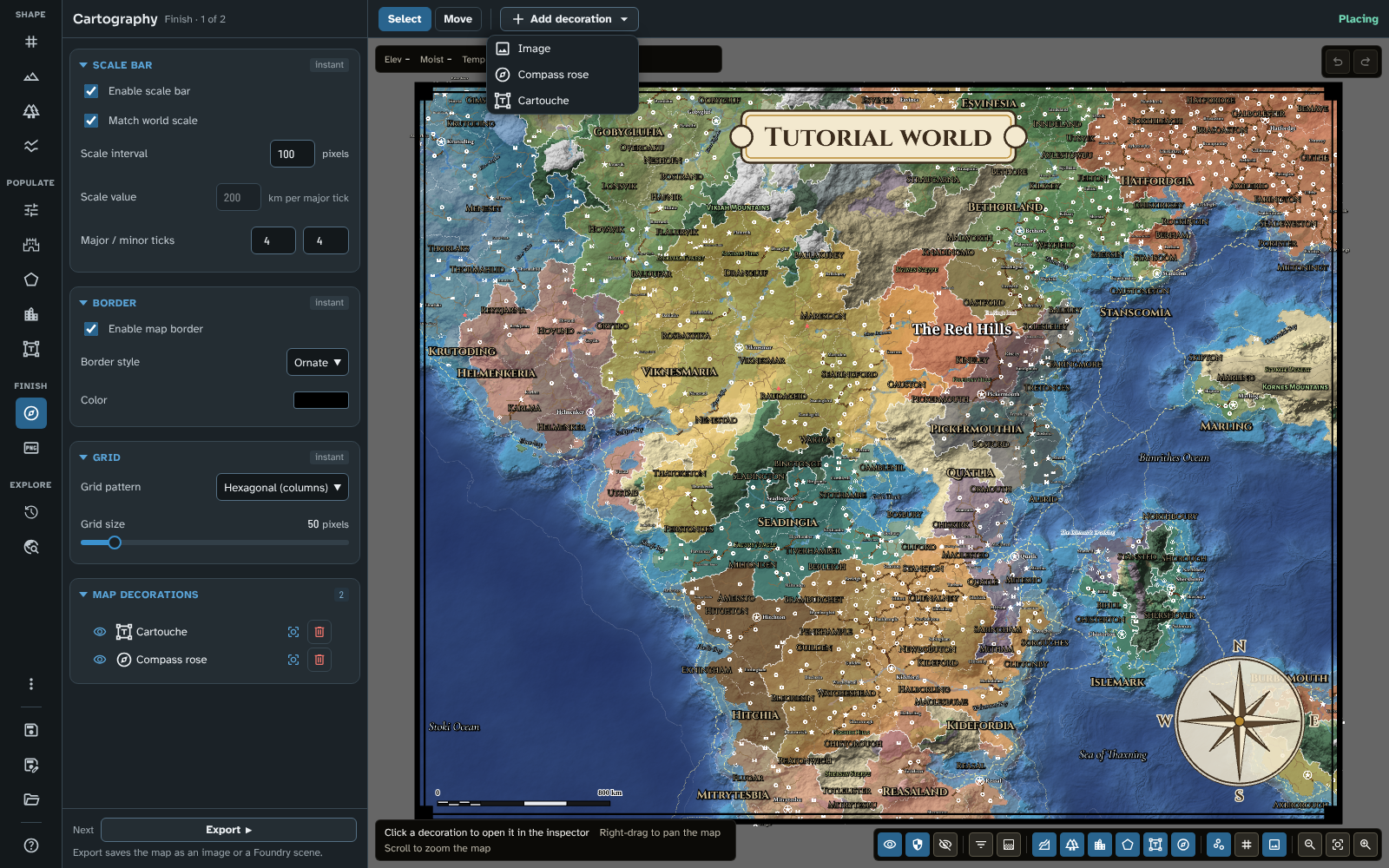
Add decoration's menu: an image of your own, a compass rose or a cartouche.
Rotating with the wheel turns a decoration 5° at a time, and resizing steps its scale so that the value always matches a position of the inspector's Scale slider.
The inspector
Choosing a decoration (its row in the list, a click in Select mode or a double-click in Move mode) opens it in the inspector. Every decoration has:
- Name and Visibility (Everyone, GM only or Hidden). A decoration set to GM only is left out of the player image of an exported scene and goes on the GM overlay instead (see Export).
- Opacity: from 0.1 to 1.
- Scale: from 0.05 to 5.
- Rotation: from -180° to 180°.
- Focus view zooms the map to the decoration, and Delete removes it.
A compass rose and a cartouche have more sections, below (see A compass rose and A cartouche).
Changes apply at once, and each is one step of undo. Double-click a slider to put back the value it had when the inspector opened.
A compass rose
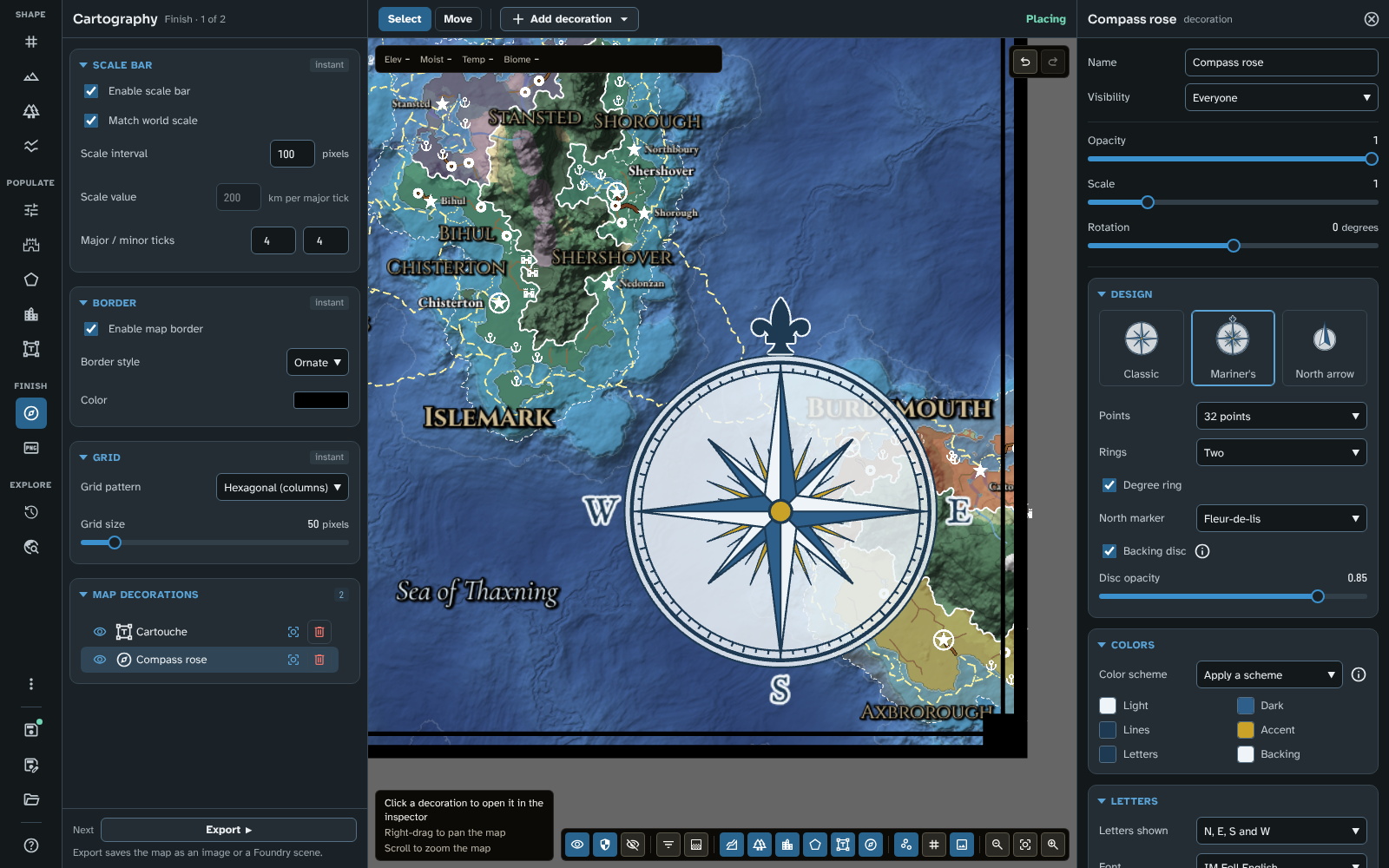
A mariner's compass rose in the Sea chart colours, open in the inspector.
Design
- The three designs, each shown in the rose's own colours: Classic (eight points, two rings and N, E, S and W in Cinzel), Mariner's (32 points, a degree ring and a fleur-de-lis for north, in IM Fell English) and North arrow (a simple arrow with one ring). Choosing a design gives the rose that design's points, rings, degree ring, north marker and font, and keeps its colours, letters and backing.
- Points: 4, 8, 16 or 32 points.
- Rings: None, One or Two (a north arrow has one ring or none).
- Degree ring: a ring marked in degrees round the rose.
- North marker: a Letter (N) or a Fleur-de-lis. The fleur-de-lis is drawn in the letters' colour, with their halo.
- Backing disc: a disc behind the rose, so it reads over a busy map (on at first), and Disc opacity.
Colours
- Colour scheme: Apply a scheme sets all of the rose's colours at once: Parchment, Sea chart, Ink, Slate or Crimson. You can still change each colour afterwards.
- Light, Dark, Lines, Accent, Letters and Backing: the light and dark halves of the points, the lines and rings, the hub and other touches, the letters, and the disc behind the rose. A north arrow has no accent colour.
Letters
- Letters shown: None, N, E, S and W or All eight (a north arrow shows the N alone). The letters are the interface's own, so a translated interface gives them in its language.
- Font and Bold, as for labels (see Fonts).
- Letter size: the letters' size, as a share of the rose's.
- Upright letters: keeps each letter level on the page when the rose is turned (off at first). The letters still mark their directions.
- Letter halo: an outline in the backing's colour round each letter, so letters outside the disc read over the map (on at first).
A cartouche
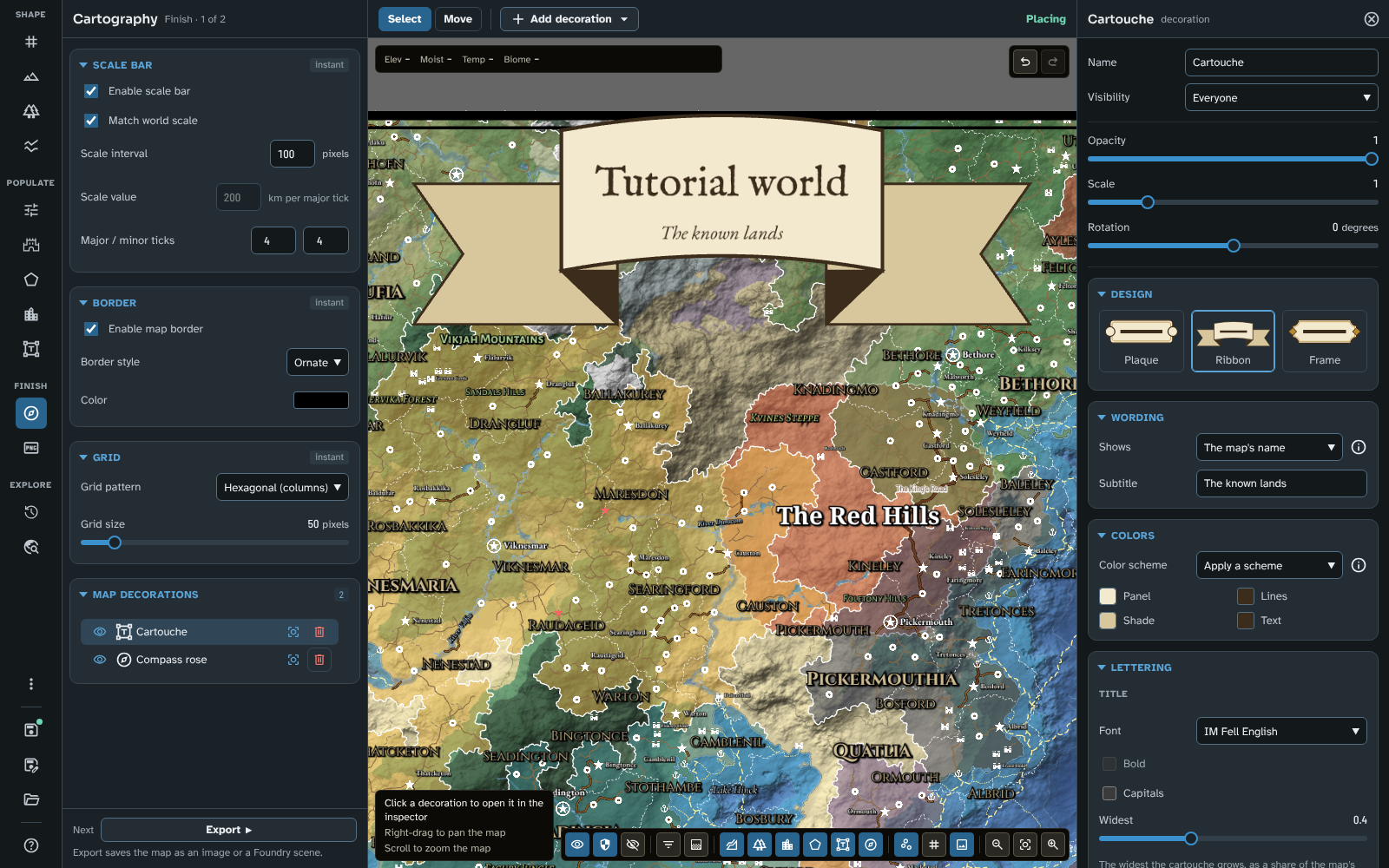
A ribbon cartouche with the map's name and a subtitle, open in the inspector.
A cartouche is a panel holding the map's title, and a subtitle if you give it one. It grows to fit its text, up to its Widest: a longer title is made smaller, then put on two lines.
Design
- The three designs, each shown in the cartouche's own colours: Plaque (a framed panel, in Cinzel), Ribbon (a bowed band with folded tails, in IM Fell English) and Frame (a panel with a rule between title and subtitle, in Cinzel Decorative). Choosing a design gives the cartouche that design's font.
Wording
- Shows: The map's name (the default) or A title of its own. The map's name follows the map: rename it, save it as a copy or make a regional map from it, and the cartouche shows the new name. A map never saved shows "Unnamed map".
- Title: the cartouche's own title (with A title of its own). Left empty, it shows the map's name.
- Subtitle: a second, smaller line under the title, or none.
Colours
- Colour scheme and Apply a scheme, as for a compass rose.
- Panel, Lines, Accent and Text, and for a ribbon Shade (the colour of its tails' folds). A ribbon has no accent colour.
Lettering
- Title: Font, Bold, Capitals (the title in capital letters) and Widest (the widest the cartouche grows, as a share of the map's width). If the title is too long to fit even on two lines, the inspector says so: shorten it, or let the cartouche grow wider.
- Subtitle (with a subtitle): Font, Italic and Size (the subtitle's size, as a share of the title's). The subtitle starts in EB Garamond italic, since the engraved faces have no lower case or italic.
Scale, Widest and the subtitle's Size all change how large the text looks.
Dialogues
Add new decoration
Opened by Image in the Add decoration menu.
- Name: starts as "Decoration 1", "Decoration 2" and so on.
- Image source: the image to use. In Foundry, the file picker browses your Foundry data; on the web you can type an image's address or choose an image from your computer, which is then kept inside the map.
The decoration is placed in the middle of the map at its full size, visible to everyone. If you leave Image source empty, nothing is added.
Tips
- If your decorations or scale bar don't show, check the Decorations toggle in the map controls. Choosing Cartography doesn't switch it on for you.
- A compass rose or a cartouche drawn by the module stays sharp at any export scale, since it is drawn afresh at the scale chosen.
- On a regional map, a compass rose or a cartouche from its parent keeps its place and size relative to the map; an image decoration is cropped with the map, as before.
- Any image can be a decoration too: a wind rose, a title cartouche of your own or a sea monster. Images with a transparent background sit best on the map.
- Press ? to see every shortcut for Cartography's modes and for a held decoration.
Next: Export
Related: Map Canvas, Grid Cell Data, New map, Export