On this page
Part of Generate
Cultures
Cultures are the peoples of your map. Each culture has the land it suits, the places it starts from (its homelands) and the language it names its places in. When you Generate, the cultures spread from their homelands over the land that suits them, meet and mix at their borders, and name the towns, castles and realms where they live. Dwarves can keep to the mountains, elves to the forests and a seafaring people to the coasts.
Cultures are optional. A map with none has one people living everywhere, naming its places in the Generate panel's Default name style.
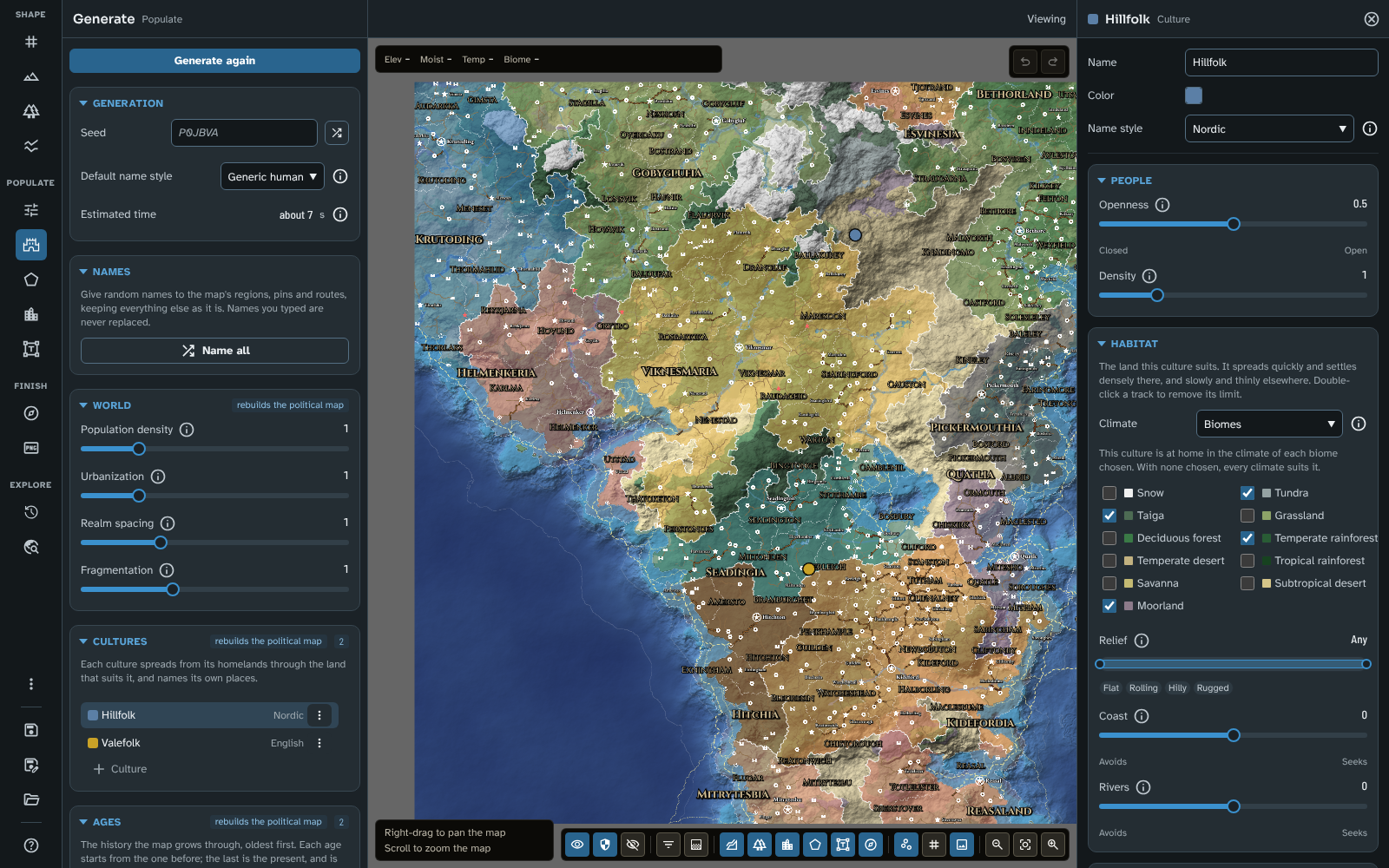
Generate's Cultures section with the Hillfolk and the Valefolk, and the Hillfolk in the inspector, their homeland marked on the map.
The Cultures section
The Cultures section of the Generate panel lists the map's cultures, each with its colour, its name and its name style. The badge says rebuilds the political map.
- + Culture at the end of the list adds a culture. It opens a naming row: type a name and press Enter (or click away). Escape, or an empty name, makes nothing. A new culture starts with the usual settings (open, the usual density, its climate from biomes with none chosen, so no limits on its habitat, its homelands placed for it), the panel's default name style and the next unused preset colour, and opens in the inspector.
- Click a row to open the culture in the inspector.
- The row's More options menu has Rename, Duplicate (with its homelands) and Delete (after asking: places already generated keep their names).
Each of these is one step of undo. A map can have up to 24 cultures. While the map has cultures, each names its own places, and the panel's Default name style names only the land no culture holds.
Changing a culture after a run marks the run out of date, except its name and colour, which Generate does not read: they apply to the map at once.
The culture inspector
Each field applies when you finish with it and is one step of undo. Double-clicking a slider puts it back to its default. The name, colour and name style come first, then three folding sections, People, Habitat and Homelands, which stay open or folded as you left them.
Name, colour and name style
- Name.
- Colour: the culture's colour, used for its homeland markers, the Culture thematic layer and its legend, and its share in the Results.
- Name style: the language this culture's places and realms are named in, from 43 styles.
People
- Openness, from Closed to Open: how readily the culture mixes with others. Open cultures blend over wide borderlands and draw others to their towns; closed ones keep sharp borders and keep others out.
- Density: how many people the same land feeds when this culture farms it, compared with other cultures (from a quarter to four times as many).
Habitat
The land this culture suits. It spreads quickly and settles densely there, and slowly and thinly elsewhere.
-
Climate: where the culture is at home, in one of two ways:
- Biomes (the default for a new culture): tick the biomes the culture is at home in (Chosen biomes: the map's land biomes, built-in and custom, each with its colour). Each time you generate, the climate of each chosen biome is worked out from the map as it then is (the middle 80% of the temperature, moisture and elevation where that biome shows), so it follows later changes to the terrain and biomes. With none chosen, the culture suits every climate.
- Zones: climate zones you set by hand (in the same way custom biome rules are set). Each zone is listed with its ranges; Edit zones opens the rule editor on them (each zone a row of elevation, moisture and temperature, each with one or more ranges, and the built-in land biomes below for reference). Accept applies them as one step of undo, Cancel changes nothing. With no zones, every climate suits the culture.
Land suits the culture as well as its best biome or zone, so biomes or zones far apart (snow and tropical rainforest, say) do not take in the climates between them. Switching between Biomes and Zones keeps both, so you can switch back. When the chosen biomes or zones take in most of the map's land, a warning says they do little to place the culture.
-
Relief: how rugged the land is (the difference in height across a small area). One track with two handles: drag a handle (or move it with the arrow keys, Page Up and Page Down, Home and End) to set where the range starts and ends. Flat, Rolling, Hilly and Rugged set the range. A full track is Any: no limit. Double-click it to remove its limit.
-
Coast and Rivers, from Avoids to Seeks: whether the culture seeks out the coast or rivers, or keeps away from them. The middle is neither.
While any culture's climate comes from biomes, changing a custom biome's rules or placement, or deleting a custom biome, marks the run out of date, since it moves where the biomes show. A chosen biome since deleted, or one the map shows nowhere, is left out quietly.
Cultures made before version 4.3.0 had temperature, moisture and height ranges. They open on Zones, with one zone made of those ranges, and give exactly the same run as before. The first change you make writes them as that zone.
Homelands
Where the culture starts. It spreads from all its homelands at once, so a culture can begin in two mountain ranges on opposite sides of the map.
- With none given (Auto), the run places one where the land suits the culture best, away from the other cultures' homelands and, where there is room, away from the map's edges. Cultures with the narrowest habitat are placed first, so a mountain or desert people is seated in its own country before a people that could live anywhere, whatever their order in the list. On a world with little land for its cultures, homelands may sit closer together.
- Add homeland, then click the map's land to add one there (a click on water is refused). The button reads Click the map while it waits; Escape, pressing it again, or closing the inspector stops without adding one. A culture can have up to 12 homelands.
- Each homeland is listed by its position, with a button to remove it. Use auto removes them all.
While the Generate tool is open, each culture's homelands show on the map in its colour: filled where you put them, and hollow where the last run placed one for a culture you gave none. A homeland that is not on land when the run starts (the sea level has risen over it, say) is left out, and a notice says so.
What cultures change in a run
- Where people live: each part of the land is shared among the cultures that reach it, by how well it suits them and how open they are.
- Names: each place is named in the language of the culture with the largest share of its people. Counties, duchies and realms take their names from their seats, so they are named in the language of the people at their seat.
- Realms: cultures tend to keep to their own realms, so borders between peoples often become borders between realms. Each realm has a Ruling culture, the culture of the people at its capital; the other peoples in it are its subjects.
- Ages: in the Generate tool's Ages, an age can have a culture invade (it takes land from the peoples it meets, and the age is more war-torn where it advances), arrive (it settles where it fits best), migrate (it settles among the peoples already there) or colonise (it starts from the best empty land no realm held). In each, the culture is absent from the ages before (see Ages). The History tool shows each age's peoples with the Culture thematic layer.
After a run:
- each generated place and realm lists its Cultures (the peoples living there over 5%, largest first) in the inspector's Generated section, each realm its Ruling culture, and each duchy and county its Culture;
- the panel's Results give each culture's share of the population;
- in Foundry, the journal pages of an exported scene list the same figures.
These figures name a culture as it is now, so renaming or recolouring one after a run changes it in the details and the Culture layer too. A culture deleted after a run is still named as it was then.
Tips
- Start with a broad habitat and narrow it after a run: a culture limited too tightly may find very little land that suits it.
- For a forest people, choose the forest biomes: they settle the forests wherever they grow, and form their realms there. For a mountain people, choose Zones with an elevation of Highland to Mountain and a Relief from Hilly upwards; for a seafaring one, move Coast towards Seeks.
- A biome that feeds few (snow, desert) holds its people only thinly: most of a desert people still live on the better land at its edges.
- Use several homelands for a people scattered across the map, and an Invasion event in a later age for a conquest.
- Cultures travel with a regional map, with the homelands that fall inside it.
- To see where each people settled, choose Culture in the map controls' Thematic layers menu after a run (see Thematic layers).
Related: Generate, Regions, Biomes