On this page
Module Settings
Looking for something that used to be here? The 3D view is now a button on the rail (see Map Canvas), reference images have their own tool (Reference image), and the old Map Configuration settings (visuals, water, hydrology, world and climate) moved into the tools they affect. Where did it go lists every move.
This page covers the settings that belong to you rather than to a map: the Appearance menu, Full screen on the web, and what the module keeps in Foundry's own settings.
Appearance
Appearance is a button among the occasional tools on the rail (below the stages). Its tooltip names your current choice, for example "Appearance: Dark, Teal". Click it to open a menu beside the rail with two groups:
- Mode: Auto, Light or Dark. Auto follows Foundry's own interface theme in Foundry, or your system's light or dark preference on the web.
- Hue: Gold or Teal, the accent colour of the studio's panels, menus and dialogues.
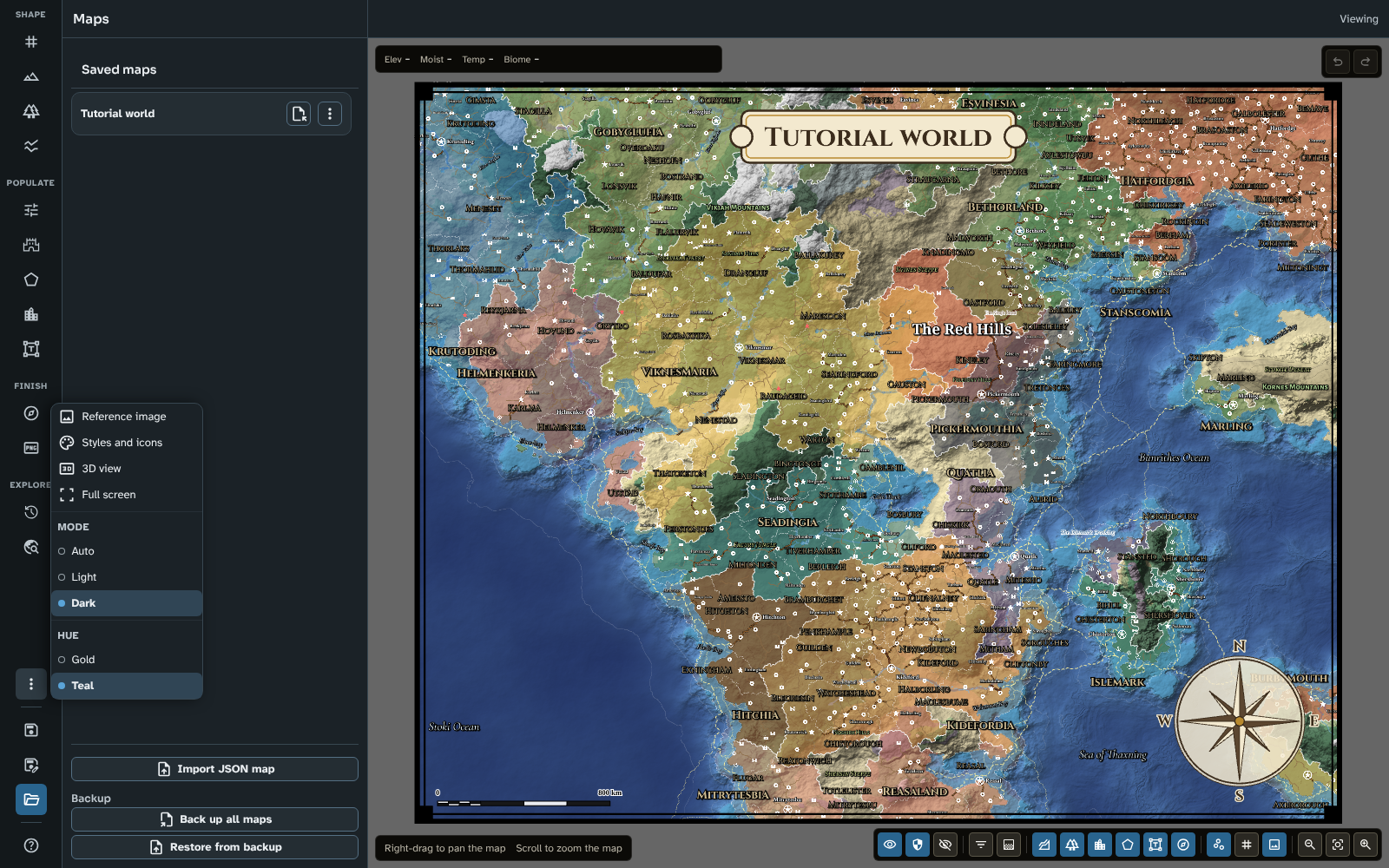
Appearance, here in the rail's More menu (on a taller window it has a button of its own), with Mode set to Dark and Hue to Teal.
The current choice in each group is marked with a dot. A choice applies at once, and the menu stays open so you can try the others. Close it with Escape (which puts focus back on the button), Tab, or a click elsewhere. With the keyboard, Up and Down move through the choices, Home and End jump to the first and last, and Enter or Space chooses.
Your choice is kept by the browser you use, in Foundry and on the web, and applies to every map. It doesn't change anything for other users. All four combinations meet the WCAG AA contrast levels.
On a short window the occasional tools fold into the rail's More tools menu, and the Mode and Hue choices then sit in that menu under their headings.
In version 3 these were the Theme and Colour Theme settings of the Settings tool, and the hue was also a Foundry setting. The Settings tool is gone.
Full screen
Web only. Full screen is a button among the occasional tools, after the 3D view. It takes the whole page in and out of full screen; while the page is full screen, the button's name is Exit full screen. Pressing Escape also leaves full screen, as in any page.
The button is shown only when your browser allows the page to go full screen. In Foundry there is no Full screen button: use Foundry's own window controls.
Foundry settings
The module adds nothing to Foundry's Configure Settings sheet: everything you can change is in the studio itself. Behind the scenes, it keeps these settings in Foundry:
- Your Appearance choice (mode and hue): kept for you in your browser, as for any of Foundry's client settings. Change it with the Appearance menu.
- Hidden built-in pin icons and custom pin icons: kept for the whole world, so every map in it shares them. Change them in Styles and icons.
On the web, the same settings are kept in your browser's storage.
Everything else (the map's terrain, water, climate, rivers, grid and so on) is saved with each map and set in its tool. See Map Making Tools.
Related: Map Canvas, Styles and icons, Where did it go, Help