On this page
Tutorial 5: The Faceless Horde (Using Wildcards)
Goal: Let's create a "Zombie" Identity that looks different every time it is applied. This tutorial introduces Wildcards, allowing you to instantly generate a diverse horde of monsters using a single Visage without having to manually assign art to every individual token.
Prerequisites
- Role: Game Master (though Players can also use Wildcards for their own Visages)
- Required Modules: Visage
Concepts Covered
- Using the
* wildcard in image paths
- Applying a Global Visage to multiple tokens at once
- Understanding how Global Identities interact with the Selector HUD
Step-by-Step Guide
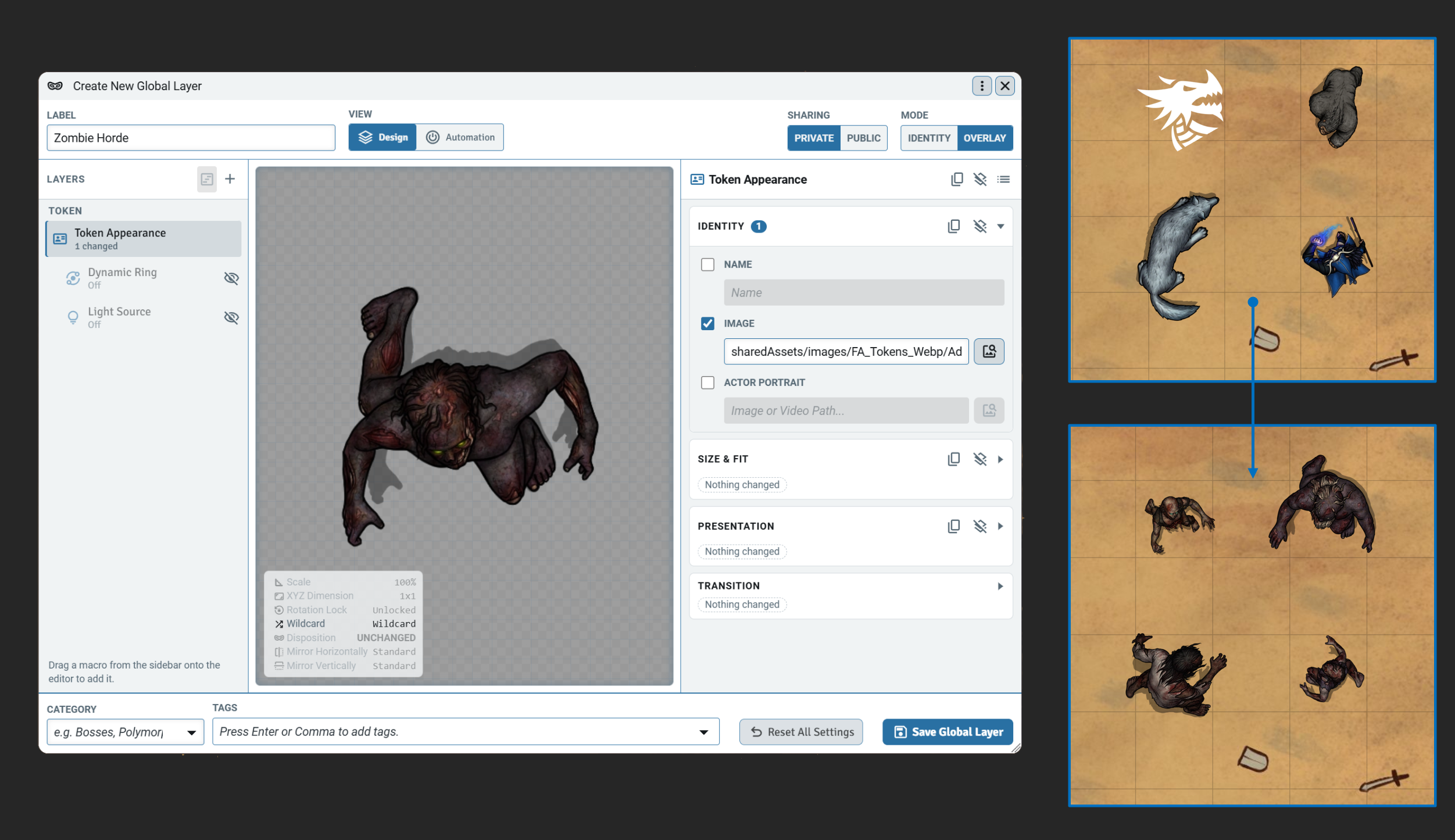
Phase 1: Creating the Wildcard Identity
- Create a New Visage: Open the Global Library (the blue window) and click Create New Global Layer.
- Set the Metadata: Name it "Zombie Horde" and ensure the Mode is set to Identity. (Since a zombie completely replaces the base creature, we want this to act as an identity). Set sharing to "Private" (so we can see how it interacts with the Selector HUD later).
- Use a Wildcard Path: With Token Appearance selected in the Layers list, tick the box for Image in the Identity section. Instead of selecting a single specific file, we are going to use an asterisk (
*).
- If your zombie images are stored in a folder called
monsters/zombies/ and are named zombie_01.png, zombie_02.png, etc., you would type: monsters/zombies/zombie_*.png
- Alternative: You can use the File Picker to select one of your zombie images, and then manually replace the number with an
* inside the text box.
- Check the Preview: The Live Preview will immediately select a random matching image to prove your wildcard path is working.
- Save: Click the Save Global Layer button.
Phase 2: Unleashing the Horde
- Select Multiple Tokens: Drag a selection box over 3 or 4 tokens on your canvas (e.g., some generic bandits or townsfolk that are about to be infected).
- Apply the Visage: Inside the Global Library, click the Apply button on your new "Zombie Horde" card.
- Watch the Canvas: Every selected token will instantly transform into a zombie, but Visage will roll separately for each one, giving them all different artwork.
Testing It Out (The Private Global Identity Quirk)
-
Right-click one of your new zombies and open the Visage Selector HUD.
-
Notice what is added: You will notice that the "Zombie Horde" tile appears in the HUD's grid of identities and has a green border to show it is the active Identity.
-
How to remove it: Simply click the token's Default (the top-left tile with the gold star) to restore the original token, or apply any other Identity from the HUD to overwrite it.
Tip: As soon as you change Identity, the "Zombie Horde" tile will disappear from the token's Selector HUD because it is a private Global Visage that would not normally be available to the player. If you changed its sharing to "Public", the tile would remain in the Selector HUD.
Pro-Tips & Creative Ideas
- The
? Wildcard: If you only want to randomise a single character in the filename, you can use the question mark. For example, dragon_red_?.png will match dragon_red_1.png but will ignore dragon_red_10.png. You can use a mix of * and ? in the same filename, such as dragon_*_1?.png to select any colour of dragon with a number of 11-19 in its filename.
- The Wildcard Badge: When a Visage uses a wildcard, a special "Shuffle" icon will appear/light up in its tile or card. If you are ever unhappy with the random image it picked, just apply the Visage again to re-roll and pick a different one.