System & Module Compatibility Notes
On this page
Specific compatibility changes have been made to Visage to work correctly with the following systems and modules:
Systems:
Modules:
- Baileywiki's Mass Edit and Scenescapes
- Dylan's Animated Tokens
- Lighting and Vision for RMU
- Token Magic FX (TMFX)
- Tokenizer 2
Systems
Pathfinder 2e (PF2E)
In the PF2E system, a token's dimensions and image scale are strictly locked to the Actor's statistics to ensure game rules (like reach, flanking, and emanations) work correctly.
If the "Specific System Overrides" game setting is enabled by the GM, then the module handles this lock for you:
- Automatic Unlock: If you apply a Visage that modifies the Dimensions (Width/Height) or Scale, Visage will temporarily unlock the token to allow the transformation.
- Automatic Restoration: If you remove that Visage, or edit the stack so that no active layers are modifying the size, Visage will re-enable the lock.
- Note: This immediately returns control to the PF2E system, which will snap the token back to the correct size for the Actor.
Modules
Baileywiki's Mass Edit and Scenescapes
Visage is compatible with Mass Edit and its Scenescapes feature. When applying a Visage inside an active Scenescape, Visage will successfully apply your chosen textures and data, while gracefully allowing Mass Edit to adjust the token's final visual scale to maintain the scene's 3D depth of field.
Mass Edit Data Protection (Auto-Revert)
Because Mass Edit is incredibly powerful and bypasses Foundry's standard Token Configuration window, it views a token's currently visible "disguise" as its actual base data. If you were to apply bulk edits and save changes to a disguised token, Mass Edit would permanently bake that temporary disguise into the token's core data.
To prevent accidental data corruption, Visage features an automated safety workflow:
-
Pre-Emptive Revert: If you select tokens with active Visages and open the Mass Edit tool, Visage will intercept the window. It will warn you of the risk and ask to temporarily revert the tokens to their default state.
-
Safe Editing: If you accept, Visage removes the disguises, logs their exact configuration in memory, and allows Mass Edit to proceed with clean token data.
-
Automatic Restoration: When you finish your bulk edits and close the Mass Edit window normally, Visage will prompt you to automatically restore all the removed Visages back onto your modified tokens.
-
Manual Restore (Safety Net): If you close the Mass Edit window and change your mind, or accidentally dismiss the final restore prompt, you can manually trigger the restoration loop by running this command in a Foundry script macro or your browser console (F12):
game.modules.get("visage").api.restoreMassEdit()
Dylan's Animated Tokens
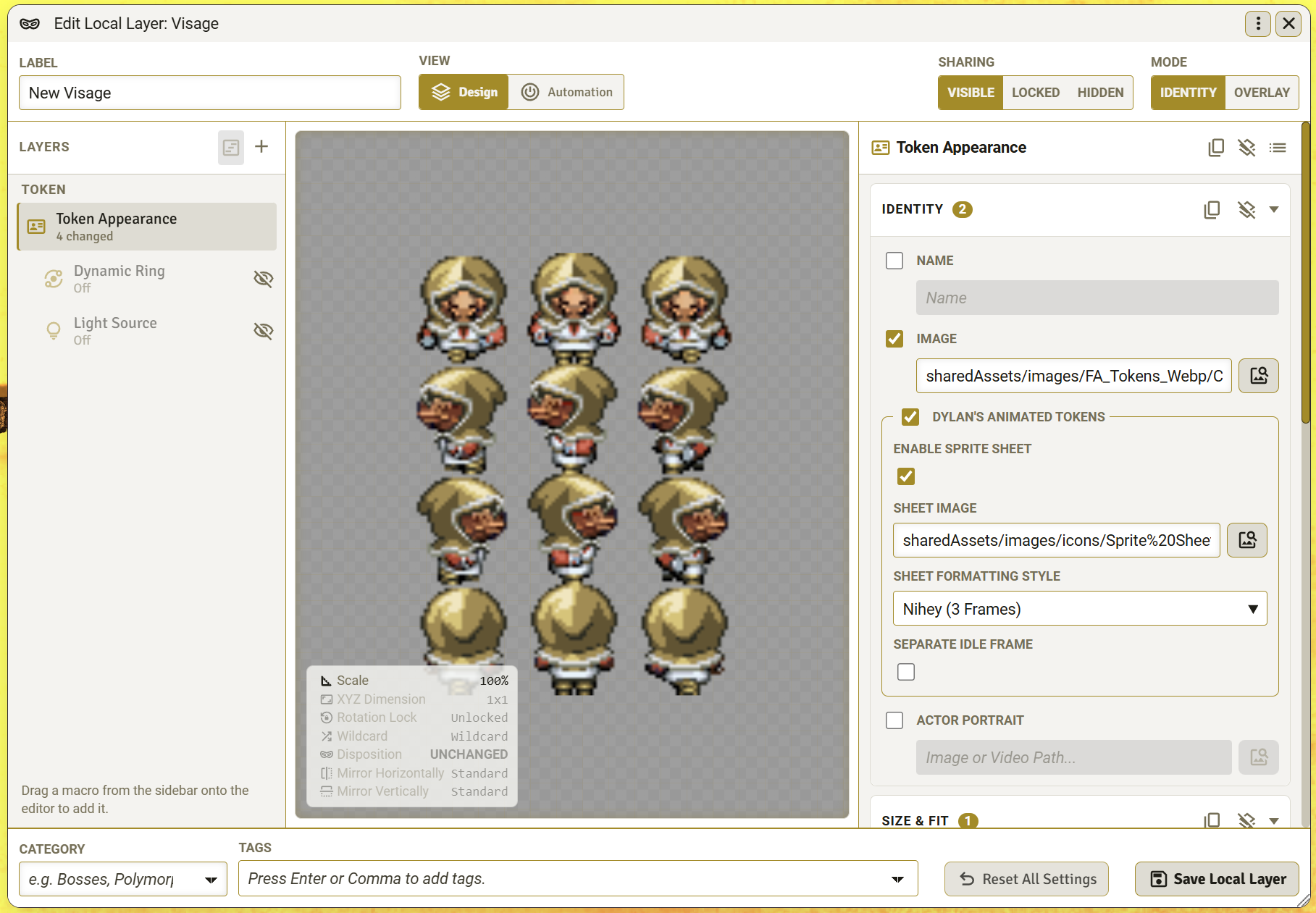
If the Dylan's Animated Tokens module is enabled, Visage will display a dedicated settings group in the Identity section of the Token Appearance layer in the Visage Editor. This allows you to configure any Visage as a sprite sheet.
Because DAT relies on user-interface interactions to calculate its image offsets, Visage cannot trigger DAT's internal calculations directly. Instead, Visage automatically replicates this logic behind the scenes to determine the exact anchor offsets and layout adjustments required. This makes sure any Visage applying a sprite sheet achieves the same canvas alignment as a native DAT token. Furthermore, Visage entirely bypasses this logic when applying standard static tokens, ensuring both modules run together without conflict.
Lighting and Vision for RMU
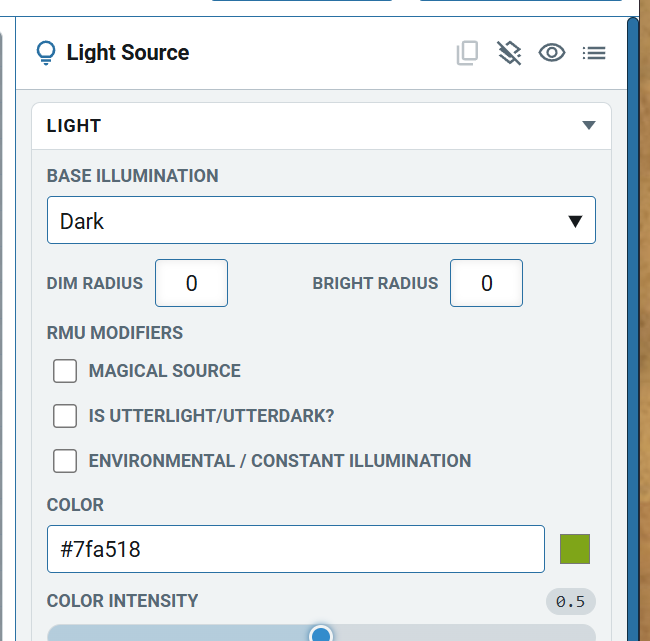
If the Lighting and Vision for RMU module is enabled (v2.2 or higher), Visage displays extra settings in the Light section of the Light Source layer in the Visage Editor. These settings allow you to create fully RMU-compliant light sources that apply and remove with your Visages.
- Mundane RMU Lights: Select the correct Base Illumination tier.
- Magical & Utter Lights: Select the Base Illumination tier, check the Magical and/or Utter boxes, and define the reach using the Dim radius.
- Environmental Lights: Select the Base Illumination tier, check the Constant box, and define the reach using the Dim radius.
Note: Visage actively enforces the module's mutual exclusivity rules in the editor. Checking 'Constant' will automatically clear the 'Magical' and 'Utter' checkboxes to prevent invalid combinations.
Applying Standard Foundry Lights
If you want to apply a standard Foundry light to an RMU token, simply set the Base Illumination to "Not an RMU light" and leave the three RMU checkboxes empty. Visage will completely bypass the RMU lighting engine and apply your exact Dim and Bright radii natively.
Token Magic FX (TMFX)
Applying Token Magic FX: Filters vs. Macros
Visage provides two distinct ways to trigger Token Magic FX (TMFX) visual effects, but they handle lifecycle management very differently. Understanding this difference is crucial for building clean, automated Visages.
-
TokenMagic Filter Layers (Recommended)
This is the native integration. When you apply a TMFX effect using a TokenMagic filter layer (added from the + menu of the Layers list) (selecting a Core Preset, a Community Gallery Preset, or pasting a Custom JSON Payload), Visage maintains complete control over that effect.
- Lifecycle Managed: Visage assigns a unique tracking ID to the filter.
- Auto-Cleanup: When the Visage is removed, toggled off, or overwritten by a new Identity mask, Visage explicitly commands TMFX to delete that specific filter, leaving everything else untouched.
-
Macro Layers (Unmanaged)
Macros are powerful, but they act as a "black box". When you use a Macro layer to trigger a custom TMFX script, Visage simply pushes the button to run your code. It does not know what your code actually does (whether it spawned a fire effect, played a sound, or sent a chat message).
- Lifecycle Unmanaged: Because Visage cannot read the contents of your macro, it cannot automatically clean up the effects it creates.
- Manual Cleanup Required: If you apply a TMFX effect via a macro, that effect will permanently stay on the token even after the Visage is removed, unless you manually clear it or write a secondary "On Exit" macro to remove it or an "on Entry" macro to clear pre-existing filters. It is also recommended to add a small time delay to the macro so that any token's appearance changes have been applied and the TMFX filter uses the new appearance properties.
Best Practice: Always use a TokenMagic filter layer for TMFX effects to ensure Visage can automatically clean up the canvas when the scene changes!
Tokenizer 2
If the Tokenizer 2 module is active, GMs can make a token image and portrait in Tokenizer 2 from the Visage Editor, and the saved images go straight into the Visage. Players don't see this option, because Tokenizer 2 holds a player's save until a GM approves it, so their Visage would be left without the image.
Opening Tokenizer 2
Select the Token Appearance layer and click the Make in Tokenizer 2 button in the heading of the Identity section. It is the first button in the heading, before the copy and clear buttons.
Tokenizer 2 opens with a starting image:
- the Visage's Image, if it is ticked and set;
- otherwise its Actor Portrait, if that is ticked and set;
- otherwise no image, so you start from scratch.
Tokenizer 2 can start from JPG, PNG and WebP images. Video files and wildcard paths can't be loaded, so it opens empty instead.
While Tokenizer 2 is open, the button is greyed out and the Visage Editor can't be saved or closed. If you try, Visage reminds you to save or close Tokenizer 2 first. This makes sure the images you save always reach the Visage.
Saving in Tokenizer 2
Make your token image, portrait or both in Tokenizer 2 as usual, save them, then close Tokenizer 2.
Tokenizer 2 suggests a file name made from the Visage's label and the date and time (for example Token.Wolf-20261107-143205.webp), so a new save never replaces an image that other Visages or tokens already use. You can change the name and folder in Tokenizer 2's save dialog. By default, the images go into Tokenizer 2's own folders:
- from the Local Visage Editor, the PC or NPC folder that suits the actor;
- from the Global Visage Editor, the PC folder.
What you see when you return to Visage
When Tokenizer 2 closes, Visage fills in whatever you saved:
| You saved |
Visage fills in |
| A token image |
Image, ticked |
| A portrait |
Actor Portrait, ticked |
| A token with the Dynamic Ring switched on |
Image, and the Dynamic Ring layer is switched on with the new image as its subject, plus the subject scale and the ring and background colours you chose |
| A token without the Dynamic Ring |
Image, and the Dynamic Ring layer is switched off so the new image shows (its settings are kept) |
| An oversized token (for example 1.3× or 2×) |
Scale, ticked and set to match (130% or 200%), so the frame still fits the grid |
Visage replaces what was in those settings and leaves everything else alone. In particular, Scale is only changed for an oversized token, so a scale you set yourself stays as it is. If you left a ring colour as white in Tokenizer 2, the Visage keeps its own colour for it.
The preview updates straight away, but nothing is stored until you click Save in the Visage Editor. If you close the editor without saving, the Visage stays as it was (the image files remain in Tokenizer 2's folder).
If you close Tokenizer 2 without saving anything, Visage shows "No image was saved in Tokenizer 2" and changes nothing.
Good to know
- The images are ordinary files. They keep working if you later disable or remove Tokenizer 2. Only the button disappears.
- Old images aren't deleted. Each save makes a new file, so you may want to tidy Tokenizer 2's folders now and then.
- Opening Tokenizer 2 again starts from the flat image. Visage keeps only the finished images, not Tokenizer 2's layers, so you can't reopen the original design (its frame, masks and layers) from Visage. To keep a layered design you can return to, make it in Tokenizer 2 on an actor and then pick the saved image in the Visage.
- Tokenizer file names: Visage accepts image paths written by Tokenizer 2, including the cache buster (
?v=...) they add after the file type.