Lighting and Vision for RMU








Overview
The Lighting and Vision for RMU module implements the rules for lighting and visibility in Rolemaster Unified Core Law and applies vision talents to tokens.
Please install the correct version of the module:
- v1.x is compatible with v13 of FoundryVTT.
- v2.x is compatible with v14 of FoundryVTT.
Setting Expectations: Visual Compromises
It is important to understand that this module has to make visual compromises to represent RMU's complex lighting system within Foundry VTT's rendering engine. If the visual lighting on the canvas doesn't perfectly match the mental picture you have of a scene, it is likely due to one of these two hard engine limitations:
- The 7 vs. 3 Light Level Problem: RMU relies on a 7-tier lighting system (from
Bright down to Pitch Black). Foundry's WebGL canvas, however, natively supports only 3 visual states: Bright, Dim, and Unlit. Because it is physically impossible to squeeze 7 distinct visual bands into 3, the module is forced to group them. While GMs can customise how these tiers are grouped in the settings, the canvas will never display a perfect 7-step gradient.
- The "All or Nothing" Darkness Override: Foundry's native darkness sources act as impenetrable walls of shadow. To allow talents like Darkvision or Thermal Vision to work at all, the module employs a geometry override that forces these vision modes to ignore darkness polygons. However, this workaround is "all or nothing". It cannot partially penetrate shadows; once a token's vision breaches the darkness boundary, the entire area is pierced for that specific token.
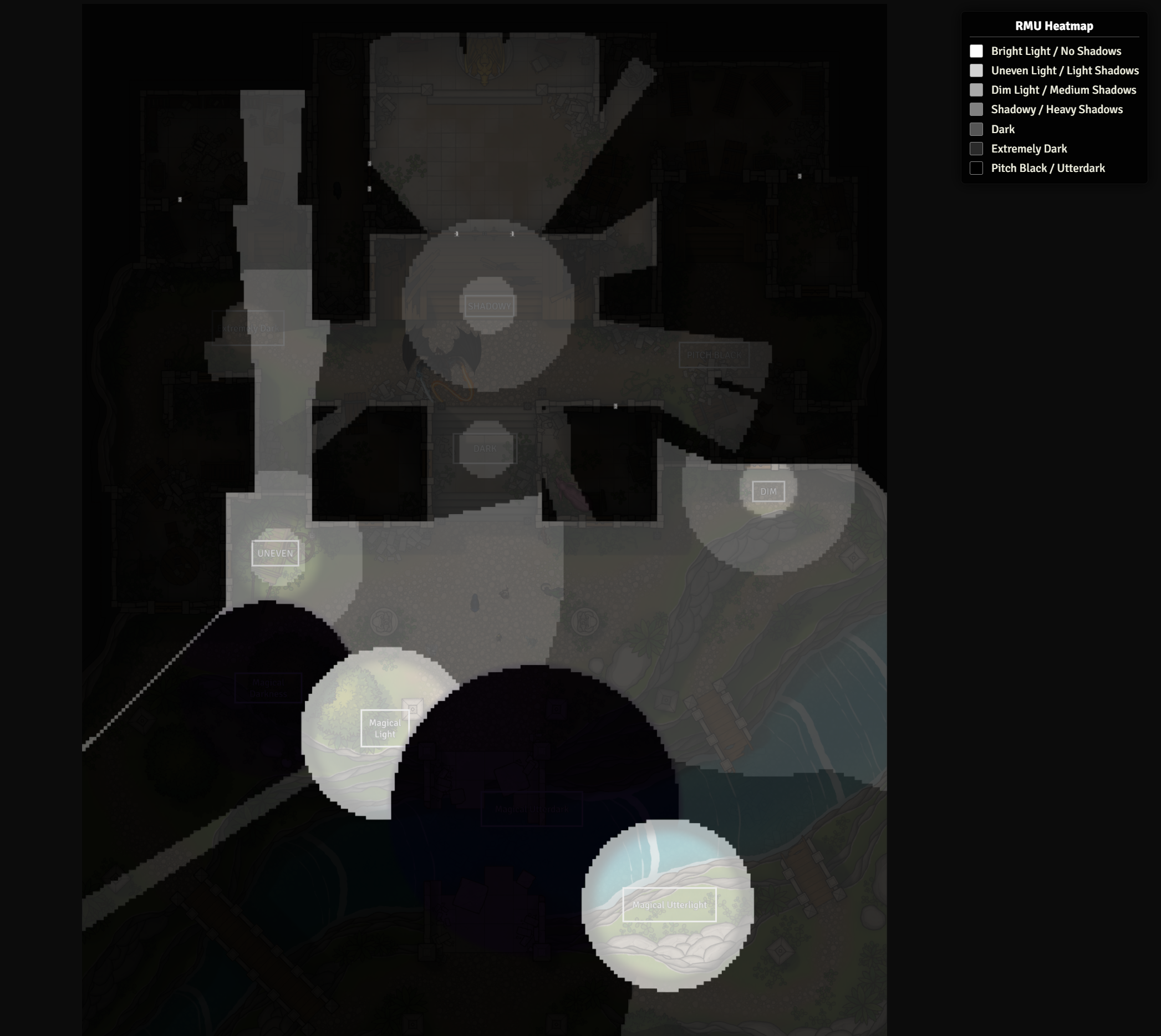
The Golden Rule: Regardless of how the lighting is visually rendered on the map, the underlying mathematical engine, the Shift + L calculator and the API output will always use the true 7-tier RMU rules and penalties. Trust the calculator. GMs can also use the 'Alt + L' diagnostic heatmap to verify how the 7 light tiers are mapped on the scene.
Features
- True RMU Light Degradation: Calculates the exact light tier (
Bright, Uneven, Dim, Shadowy, Dark, Extremely Dark, Pitch Black) based on the distance from the light source (10', 30', 100', 300', 1000' and 3000' thresholds).
- Environmental Light Sources: Light sources can be configured as "environmental light sources". These are treated as special light sources that do not follow the normal RMU rules. They can be set to any radius and their light does not degrade with distance. They provide a constant level of illumination over a scene, e.g., setting an environmental light to be
Shadowy would create a moonlit scene. This illumination would be respected by vision talents, e.g., characters with nightvision could see well in Shadowy light. Environmental lights respect walls on the scene, so building interiors, caves, etc would not be illuminated if the source was placed outside.
- Native Talent Parsing: Automatically reads the RMU Actor document upon token creation to determine if a character possesses advanced vision talents or detection senses, applying the correct Foundry settings instantly.
- Magical Light Configuration: Allows GMs to flag light sources as magical (or as
Utter), with a global setting to determine whether magical light degrades over distance or illuminates only within its full radius equally.
- Instant Chat Output: Press
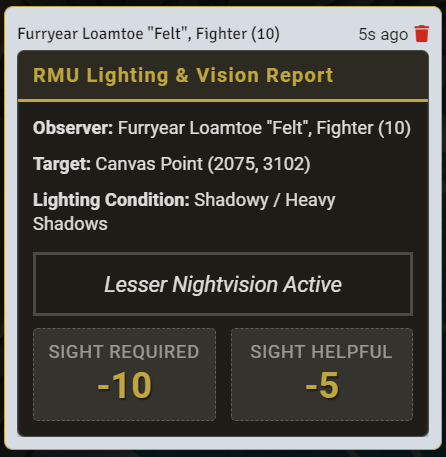
Shift + L while targeting a token or hovering the mouse on the canvas to immediately post a chat card displaying both the "Sight Required" and "Sight Helpful" penalties for that position, accounting for all active vision modes.
- Diagnostic GM Heatmap: Press
Alt + L (GM only) to display a greyscale heatmap. This reveals the mathematical boundaries of RMU light tiers, magical light & darkness, and Utterlight/Utterdark, with an on-screen legend.
Supported Vision & Detection Talents
1. Stylised Vision Modes
These talents alter how the player sees the VTT canvas, seeing through shadows and applying custom colour tints.
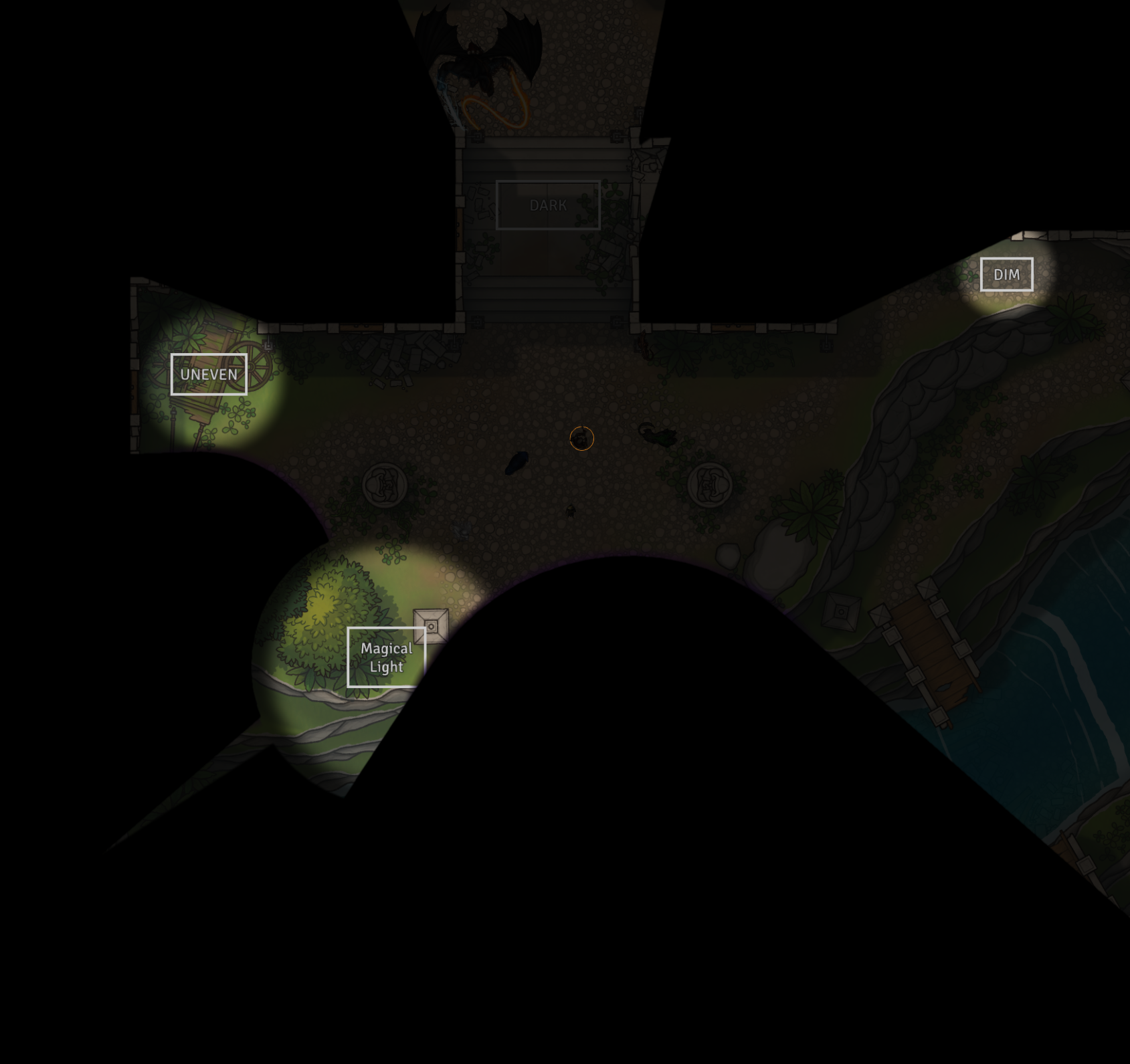
- Default (Basic Vision): Shows lights which are RMU
Bright, Uneven, Dim levels at Foundry "bright" levels and RMU Shadowy and Dark levels at Foundry "Dim" levels.
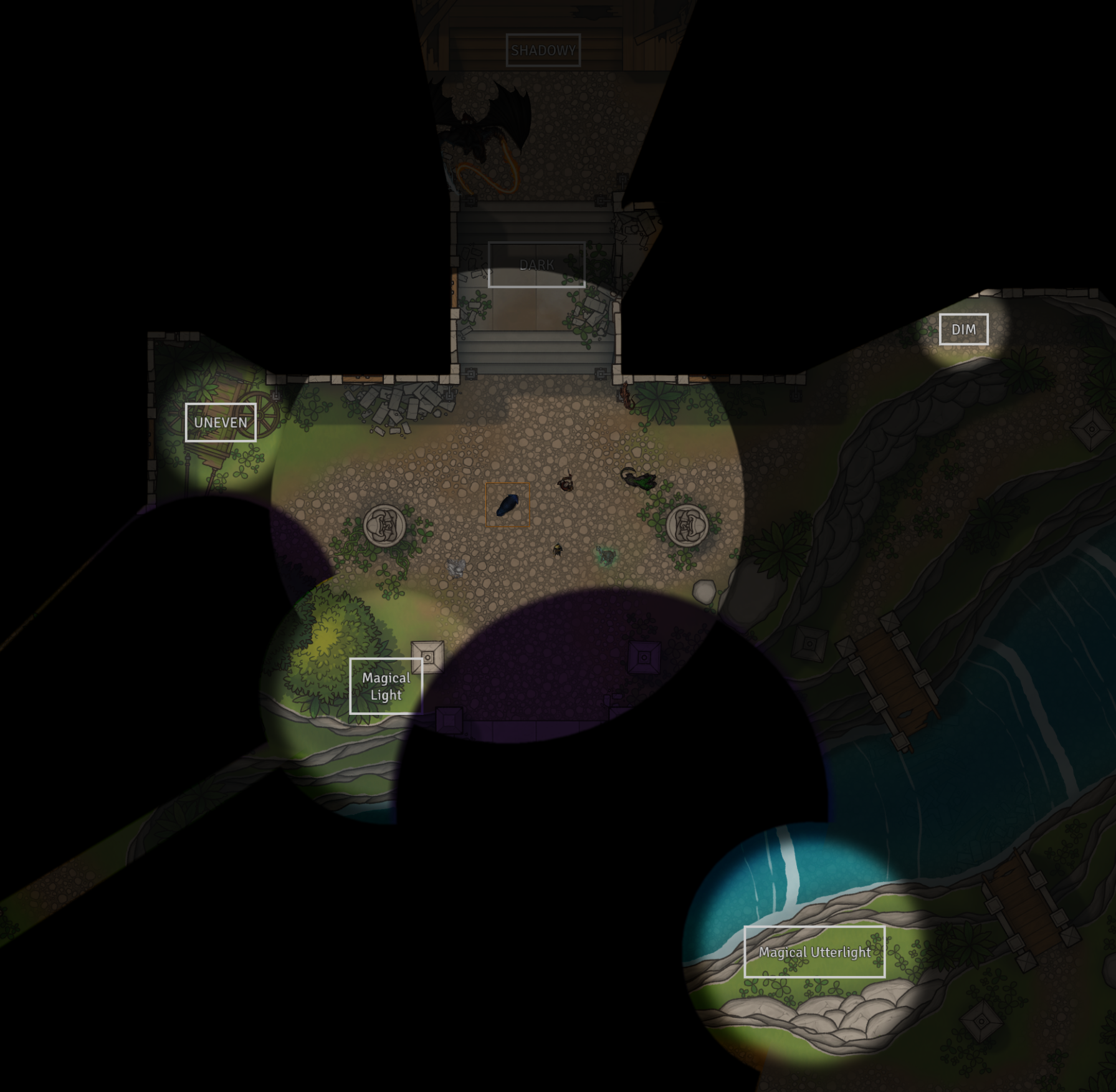
- Darkvision: Pierces complete darkness up to 10' per Tier. Shows
Bright, Uneven, Dim, Shadowy and Dark in full colour at "bright" levels.
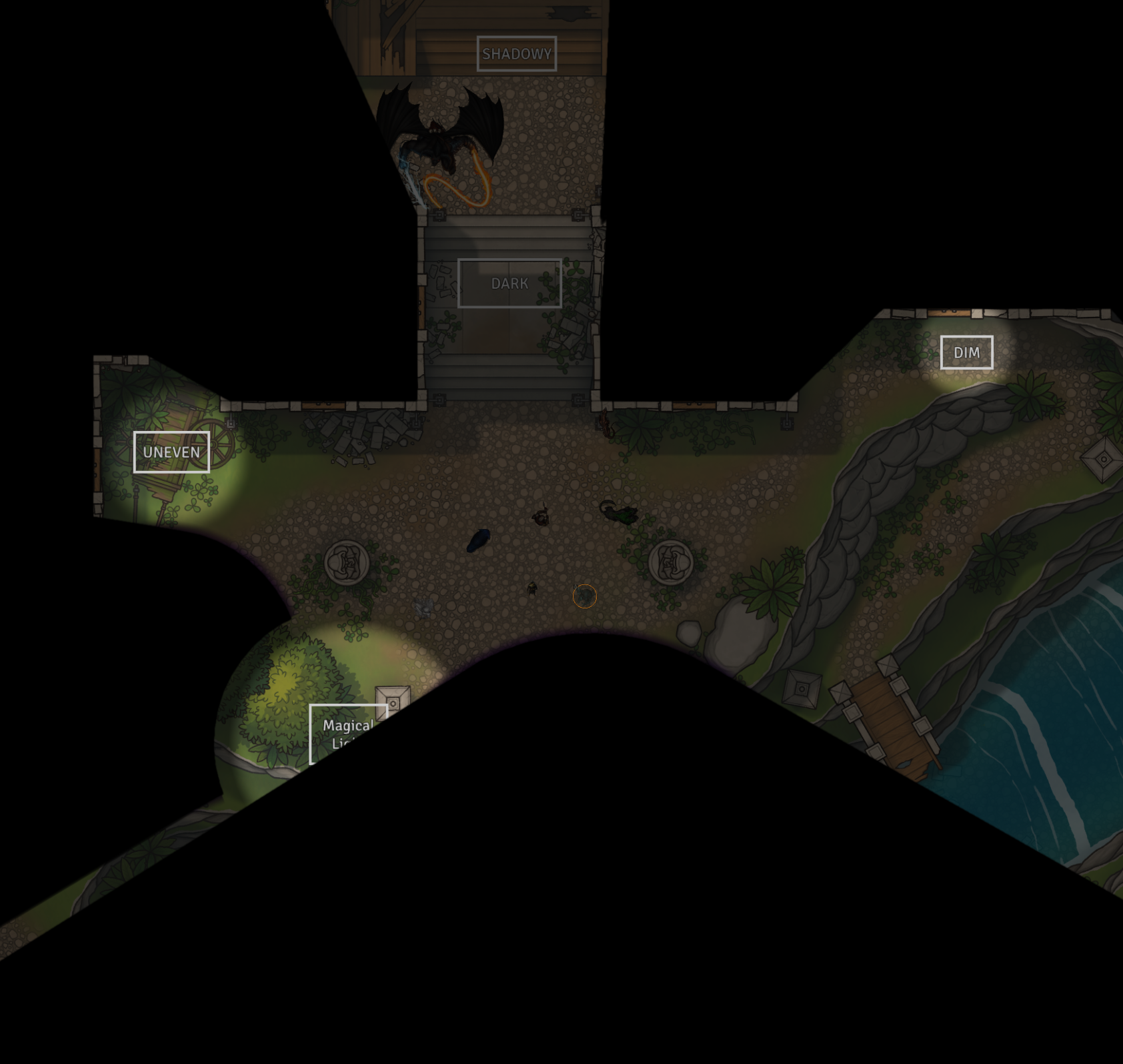
- Nightvision: Reduces darkness penalties by 40. Shows
Bright, Uneven, Dim, Shadowy and Dark in full colour at "bright" levels.
- Thermal Vision: Pierces complete darkness up to 50'. Grants See Invisibility up to 50'. Renders the canvas in a Orange/Yellow heat-map.
- Sight, Demon: Grants Darkvision up to 100', and Nightvision beyond 100'. Natively includes Thermal Vision (50'). Grants See Invisibility up to 5' per Level. Renders the canvas in a Crimson tint.
Note: The Lesser Nightvision talent is recognised by the module and its penalty reduction of 20 is applied and shown in the chat card/API output. However, it shares the same vision mode as Basic Vision.
Examples of what the GM or players see
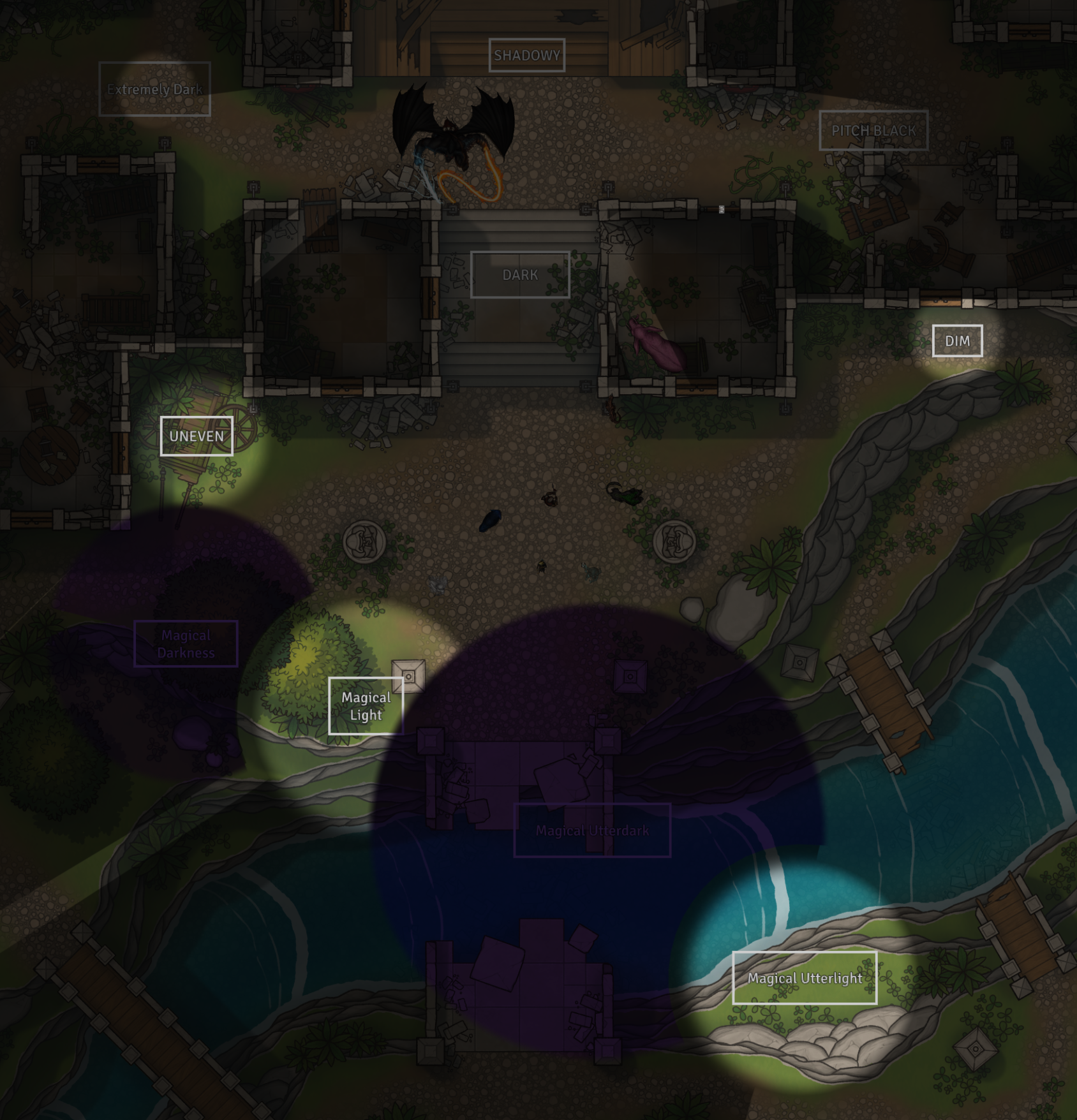
-
GM view with no token selected
-
Token view with Basic vision (or Lesser Nightvision)
-
Token view with Nightvision
-
Token view with Darkvision (but no Nightvision)
2. Detection Senses (Token Outlines)
These talents do not colour the canvas, but act as a radar. They pierce physical walls and pitch-black darkness to reveal hidden tokens using coloured outlines.
- Life Sense (Cyan Outline): Range of 5' per Tier.
- Exclusion Rule: Completely ignores any token that possesses a talent named "Lifeless".
- Presence Sense (Red Outline): Range of 5' per Level.
- Exclusion Rule: Completely ignores any token that possesses a talent named "Animalistic" or "Mindless".
- Tremorsense: Flat 50' range. Uses native Foundry Tremorsense mechanics.
- Invisibility Sense: Range of 5' per Level. Reveals invisible tokens.
- Air Movement Detection: Range of 1' per Tier. Mapped mechanically to native Foundry See Invisibility.
- Electrolocation, Passive: Range of 1' per Level. Mapped mechanically to native Foundry See Invisibility.
How to Use
-
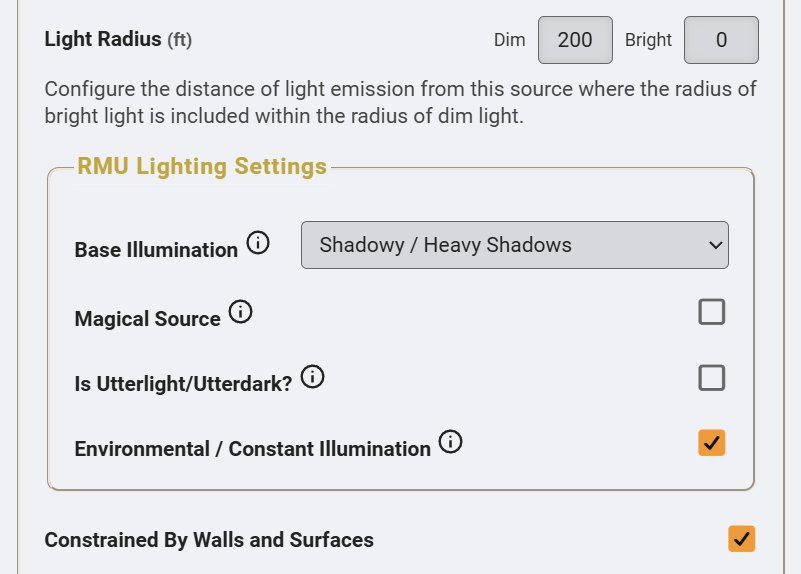
Configure Light Sources: Open the configuration sheet for any Ambient Light or Token emitting light. Find the new RMU Lighting Settings section.
-
Set Base Illumination: Select the light level present within the first 10 feet of the source (e.g., a Torch is Dim Light). The module will automatically degrade the light mathematically.
- Set the option if the source is magical. Depending on your game setting, this will make the magic light either act like a spotlight with no light spilling beyond the radius, or it will act like natural light but suffer 2 steps of light degradation at the first boundary before degrading normally.
- Set the option if the source is Utterlight/Utterdark. Utter level lights defeat magical and mundane level light sources. Utterlight defeats Utterdark.
- Set the option if the source is an environmental light. Note that a light cannot be both environmental and magical/utter. This option will override the light degrading.
-
Automated Tokens: Simply drag an Actor with recognised vision talents onto the canvas. The module will automatically configure their Vision Modes and Detection Ranges.
-
Calculate Penalties: Select your token, target an enemy token or point to a location on the canvas, and press Shift + L to output the exact environmental modifiers to the chat.
-
Analyse the Canvas (GM Only): Press Alt + L to toggle the diagnostic heatmap. This shows the mathematical boundaries of your light sources directly onto the map as a click-through layer, complete with a HUD legend to easily verify how lights overlaps.
Lighting & Vision Configuration Panel
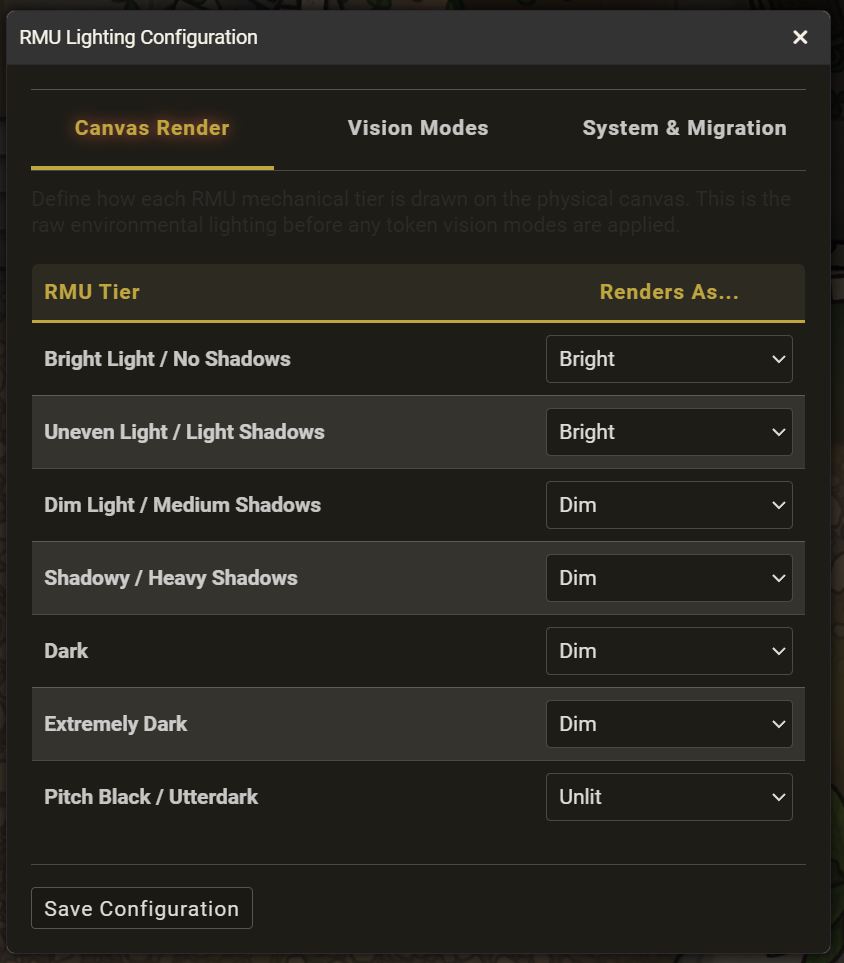
Because RMU features a 7-tier lighting system, and Foundry VTT's rendering engine only natively supports 3 distinct visual states (Bright, Dim, and Unlit), the module must group the RMU tiers into visual brackets.
The underlying math and Shift + L chat card penalties will always calculate the true 7-tier RMU values perfectly, regardless of how the VTT renders them visually.
GMs can fully customise the visual translation via the Lighting & Vision Configuration Panel found in the module settings.
The panel is divided into three tabs:
Tab 1: Canvas Render (Emitted Light)
Define how each of the 7 RMU lighting tiers is physically painted onto the canvas. This controls the raw environmental lighting (Bright, Dim, or Unlit) before any token vision modes are applied.
Tab 2: Vision Modes (Perceived Light)
Define how specific token vision modes perceive the raw canvas lighting. For example, you can configure the engine so that areas rendered as Dim on the canvas are perceived as Unlit by Basic Vision tokens, but perceived as Bright by tokens possessing Nightvision.
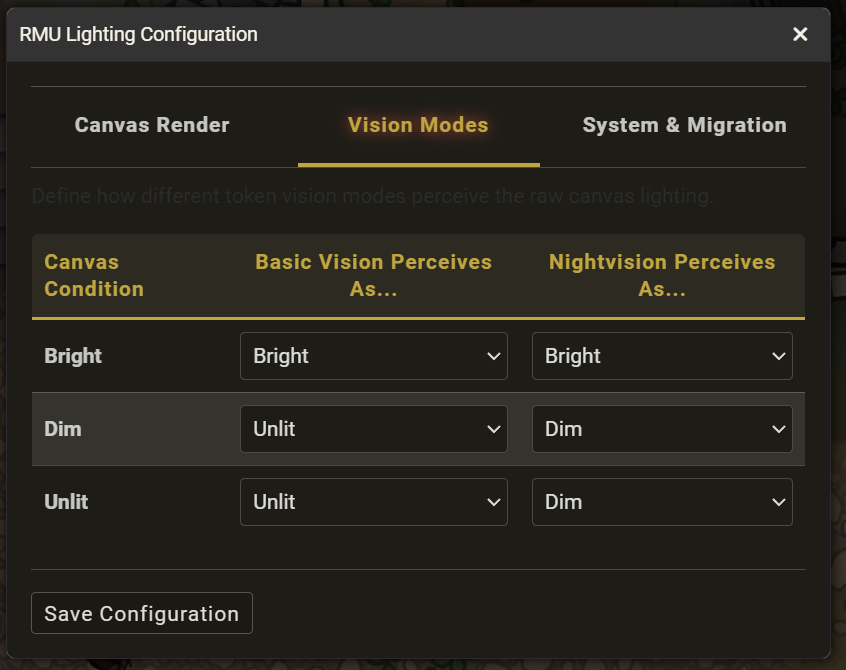
Tab 3: System & Migration
A dedicated tab to manage scene updates.
- Apply the RMU Lighting rules which will sweep the world and update all tokens/lights.
- Fully disable the module's engine and restore Foundry VTT native lighting defaults.
Note: The Configuration Panel features Hot Reloading. Clicking Save will instantly recalculate the database and redraw the Canvas WebGL vision masks without requiring a VTT browser refresh.
Migrating Existing Maps & Tokens
If you are installing this module into an ongoing campaign, your existing map assets must be updated to utilise the new RMU properties.
1. The Initialisation Prompt
When the GM first boots a world with this module enabled, a welcome dialogue will appear offering a one-click migration. Accepting this will silently sweep the entire world, reading the character sheets of every token across all scenes to inject the correct native vision settings, and mathematically updating all placed light sources.
2. Manual World Sweeps
If you import a new map from a compendium, simply open the Lighting & Vision Configuration Panel, navigate to the System & Migration tab, and click Update Scene to RMU Rules.
3. Configuring Existing Light Sources (Manual Step)
Unlike vision, the engine cannot automatically guess the narrative intent behind your pre-existing light sources (e.g., whether a placed light was meant to be a torch, a glowing mushroom, or a magical aura).
- By default, the engine will treat all pre-existing Ambient Lights and Token Lights as Bright Light (Tier 0).
- To fix this, you must double-click your existing Ambient Lights (or tokens holding lights) and manually select the correct RMU Base Illumination tier from the dropdown menu in their configuration sheets.
4. Uninstalling or Disabling
If you wish to stop using the module, open the System & Migration tab and click Restore Foundry Defaults. This will strip the custom RMU shaders from your tokens and restore your light radii exactly to where they were before the module was applied.
GM Tips for Simulating Moonlight, Starlight and Other Ambient Lighting
When using Environmental Light Sources to simulate ambient weather (like a moonlit night or a glowing magical fog), you might notice that cliffs or tall walls cast massive, map-spanning shadows. This happens because Foundry VTT treats all light sources as radiating from a single specific point, rather than falling evenly from the sky.
Here are two tips to make your ambient lighting look better:
Tip 1: The "Multiple Moons" Method (Fastest)
If you are playing on a flat map and want to eliminate long shadows cast by trees or ruins, simply place your Environmental Light, copy it, and paste it into the four corners of your map. Because the light is hitting the walls from every angle, the point-source shadows cancel each other out. Building interiors and caves will remain dark, as they are enclosed by walls on all sides.
Tip 2: Using Scene Levels (Foundry v14+)
For complex maps with cliffs, valleys, and tavern roofs, use Foundry v14's native Scene Levels:
-
Slice your map into distinct elevation levels (e.g., a ground level, a cliff level, and a roof level).
-
Place your Environmental Light and include it in all levels you want it to illuminate.
Foundry will then allow the light to illuminate the tops of the cliffs and the valleys below, whilst walls will still block the ambient light from penetrating into caves and building interiors.
Upcoming Features (Roadmap)
The following features are currently in development for full release:
- Active Effects Integration: Support for spells and potions temporarily granting vision talents.
API for System Developers
This module exposes a public API designed to be ingested by the core RMU system for automated roll resolution.
const lightingModule = game.modules.get("rmu-lighting-vision");

if (lightingModule?.active && lightingModule.api) {
  // Pass the observing token and the target token documents
  const state = lightingModule.api.getLightingState(sourceDoc, targetDoc);
  console.log(state);
}
Example JSON Output (showing a successful line of sight check)
{
  "tier": 4,
  "hasLesserNightvision": false,
  "hasNightvision": false,
  "hasDarkvision": true,
  "activeSpecialVision": "thermal",
  "penaltyFull": 0,
  "penaltyHalf": 0,
  "distance": 45.2,
  "hasLineOfSight": true
}
Example JSON Output (showing a blocked line of sight check)
{
  "hasLineOfSight": false,
  "distance": 45.2
}
Disclaimer and IP Notice
The Lighting and Vision for RMU module is an unofficial, community-developed tool designed to enhance the Rolemaster Unified experience on Foundry Virtual Tabletop.
This module is completely independent and is not affiliated with, endorsed, sponsored, or approved by Iron Crown Enterprises (ICE). "Rolemaster", "Rolemaster Unified", and the "RMU" acronym are trademarks of Iron Crown Enterprises.
This project does not distribute any proprietary text, artwork, or core rulebook content belonging to ICE. It functions strictly as a mechanical, workflow, and user interface enhancement for the official RMU system on Foundry VTT. Any use of specific system terminology or mechanical values is for functional compatibility purposes only.